Configuration
Fulltext QueueJob
The IP_FULLTEXT table is processed by the Fulltext QueueJob.
This Job flattens out the Index Requests into the IP_FULLTEXT_QUEUE table.
It is created with the inPoint Server Setup and started automatically.
Open PamConfig.exe (C:\Program Files (x86)\H&S Heilig und Schubert Software AG\Pam.Archive\Configurator\PamConfig.exe) and click on the "Jobs" tab.
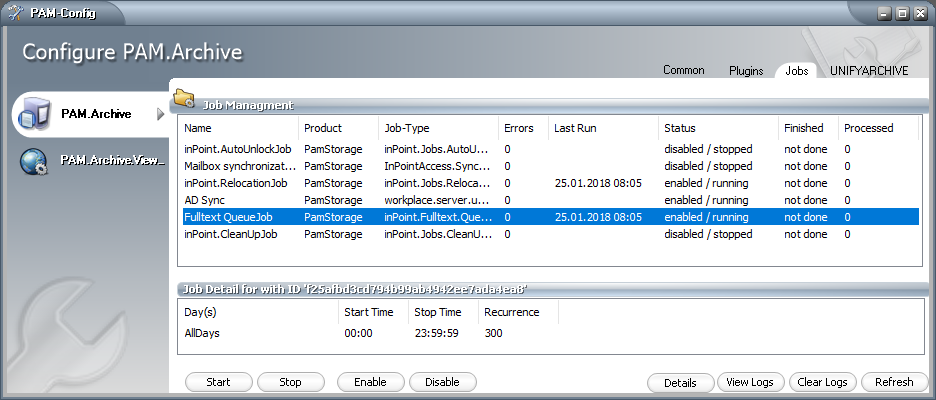
Just like for the other Jobs, here it is possible to change the scheduling (when and how often) for this job.
You can also set which tenants should be processed in the "Job Details" under "Generic Job".
Once any change have been made in the archive, there are entries in the IP_FULLTEXT_QUEUE table. The entries in the IP_FULLTEXT table are given the Status = 2000. In later versions these entries will be completely removed.
Admin Settings
Start the inPoint.Client, open the "Admin" Window and switch to the "General Settings" tab.
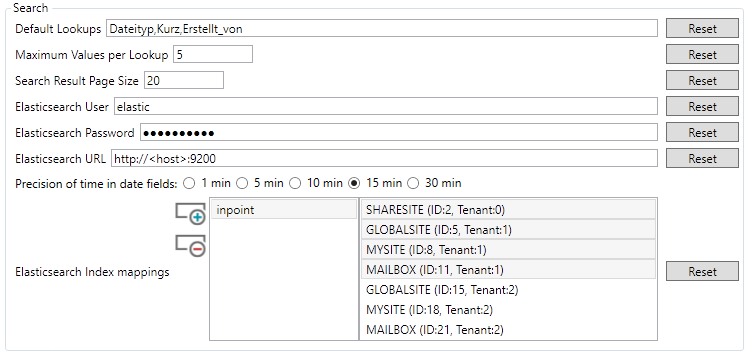
Scroll down to the groupbox called "Search":
Default Lookups
Comma-separated input for global search lookups (have to be the common name) Example:Dateityp, Erstellt_von
The search must know the lookup type, if only the common name is entered, the search assumes it is aString.
Other supported types areDecimalandDateTime
For example, the LookupErstellt_amshould be displayed, you have to writeErstellt_am=DateTimeMaximum Values per Lookup
How many values should be displayed per search attribute.Search Result Page Size
How many search results should be displayed.Elasticsearch User
If a user is required for the Elasticsearch server.Elasticsearch Password
If a user is required, the password can be entered here.Elasticsearch URL
URL with the correct port to the Elasticsearch server
Example:http://<host>:9200Elasticsearch Index mappings
Here you have to define in which hierarchies the users are allowed to search.
Click the "plus" Button, then double click the added "inpoint" and if necessary change the name to yourIndexName(Should be already set in theinPoint.Indexer.exe.config). Default is "inpoint".
Now select the Hierarchies where the users should be allowed to search.
That's how it might look:
"Save settings" and then click "Cancel".
The search is working now immediately!
Performance Monitor
If requested, the indexer can also log into the Performance Monitor.
Open a new Command Prompt as Administrator, navigate to the Indexers installation folder and execute this command:
inPoint.Indexer.exe perfmon /install
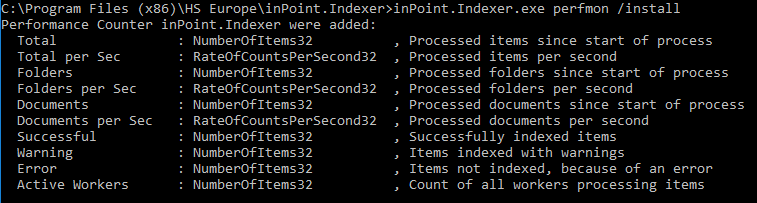
If the Indexer is running, this values can be monitored in the Performance Monitor:
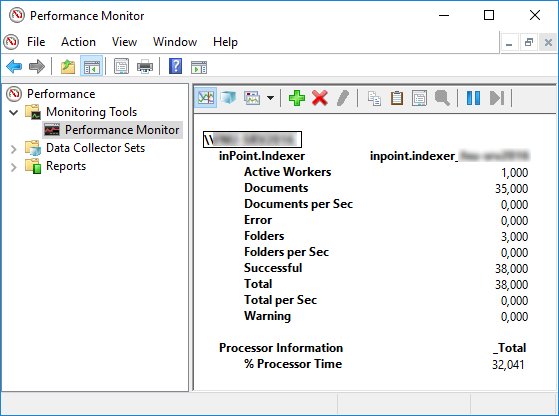
To be able to open the added performance counters easily at any time, follow this steps:
- Open Microsoft Management Console (mmc.exe)
- File Add/Remove Snap-in...
- Select "Performance Monitor", Click "Add >" and then "OK"
- Expand "Performance (Local)", Expand "Monitoring Tools" and select "Performance Monitor"
- Click on the green plus icon
- Search in the list for "inPoint.Indexer" and select it, Click "Add >>" and then "OK"
- Change the "graph type" to "Report"
- File Save As...
- Select a folder where you want to save this file, enter a name and click "Save"
The saved file can then always be opened by double-clicking it.
Indexer
The setup installs a working configuration file, nonetheless its always possible to create a fresh sample by running this command:
inPoint.Indexer.exe CREATE /config sample.config
An Indexer Config consists of three configuration sections: log4net, Pam.Archive.Config, inPoint.Fulltext. The section of PamArchiveConfig must point to the correct Pam.Archive.config (relative or absolute).
The section inPoint.Fulltext contains two big parts, converter and indexer.
The base section has only temp directory, which is used for instance for converting files to plaintext.
tempDir
Default: %TEMP%\inPointFT
A path to a directory for temporary data. Environment variables are allowed, the directory will be created if it does not exists.
NOTE: Use the same case as the path on the disk!
Example:
<inPoint.Fulltext tempDir="%TEMP%\inPointFT" >
	<indexer>
		<!-- indexer  -->
	</indexer>
	<namedConverter>
		<!-- named converter -->
	</namedConverter>
</inPoint.Fulltext>
Converter
The "converter" are defined in "namedConverter", and defined how each file type is converted to plaintext for indexing. Each converter has a name, which is then used by the "indexer", which allows different conversation for different hierarchies, tenants or even folder and a list of file extensions and how this file type is converted to plain text (called filter).
Filter
A filter defines how each file is converted to plaintext.
Predefined filter
- Empty
- The file will be indexed as empty file. In this case no file access is needed when indexing a document.
- XmlClean
- The architecture to be used by this filter. If it’s different than the indexer process, it will automatically run in an external process.
- Msg
- for Microsoft mail files (attachments will be indexed by the defined filter)
- Text
- Interpret the file as plaintext. For a unicode file byte-order-marks should be present, if not the system is guessing!
- iFilter
- Use the default iFilter implementation of the operating system. If there is no iFilter installed, it will be indexed as an empty file.
NOTE: If a file contains other files (zip, msg,…) the contained files will be converted by the iFilter too!
- Use the default iFilter implementation of the operating system. If there is no iFilter installed, it will be indexed as an empty file.
- XPath
- read a xml-document using xpath queries (the sample contains the settings for reading mails in dxl format)
- PdfBox
- conversion with Java PDFBox (Java needs to be installed)
- Custom
- Using a custom class, which implements:
inPoint.Fulltext.API.FileToText.IFileToText
The file must be placed into the indexer directory!
- Using a custom class, which implements:
- Zip
- Extractor for GZ and ZIP Files (does not support encryption)
- SevenZip
- Wrapper for 7-Zip (supports all types, which are supported by it). Must be installed first.
Filter settings
- fileTypes
<list of file types>
A list of file types, including the dot and separated by semicolon. Use ".*" to match all files, which are not defined otherwise.
e.g.: ".xls;.xlsb;.xlsm;.xlsx" or ".*"
- filterType
<Name of a filter>
One of the predefined filter names.
- forceExternalProcess
True/False
Use true, to force a handler to run it it's own process.
- processArchitecture
xAny/x32/x64
The architecture to be used by this filter. If it’s different than the indexer process, it will automatically run in an external process.
- fallbackType
<a file extension, including the dot>
The extension to be used if extension and content do not match (e.g. a CSV file is saved as XLS). This depends on a correct error-code from the iFilter
- fullQualifiedName
<full class name>
Only for type "Custom": The name of the class, which should be used for converting this file type to clear text.
Filter parameter
The arguments can be different for each filter-type. If you write a custom class, all the configured parameters will be send to the class during initialization.
Msg
This filter reads Outlook MSG files and extracts information. The filter tries to resolve non-smtp addresses found in the metadata into smtp-addresses, by querying the active directory.
- ResolveLdapAddress
True/False (optional)
Default: True
If false non ldap addresses will not be resolved into smtp addresses.
- ResolveDomainList
Text (optional)
Default: null
List of domains which will be used for resolving or if empty or not found all trusted domains will be used automatically.
PDFBox
The pdf conversation is running in an external java process, the communication between the indexer and the converter is done via http on a free port. If the PDF contains only images, the pages are extracted to tiff and converted using the defined tiff filter.
- Port
number
This tcp port is used for communication (prefer usingMinPortandMaxPort).
- MinPort
number
A free tcp port is searched starting from here
- MaxPort
number
If there is no free port in this range, the filter will not work.
- pdf2ImageResolution
Resolution Dpi
When extracting image only PDF's to images, this is the resolution in dpi which will be used.
- pdf2ImageUseGroup4Tiff
True/False
Convert the extracted images to tiff/group4 before calling the tiff conversation.
- TimeOutSeconds
number
Default: 600
How long the conversation is allowed to take, before returning an error.
- CommandFile
text (optional)
The name and path to the java executable.
- CommandLine
text (optional)
Default:-jar Pdf2Text.jar \"%WORKDIR%\" %PORT%
The arguments for starting the java converter:
Add "/noPNG" to skip the OCR part!
- WorkDir
text (optional)
The directory used for placing the pdf and all extracted files.
NOTE: Check for correct casing!
- keepConvertedImages
True/False
For testing only, the extracted files will be kept instead of cleaning them up.
XPath
This filter reads XML files and extracts information using XPath queries. There is always a pair of "Test" and "Read" definitions. If "Test" returns a value, the corresponding "Read" is used to extract the information. The list is process starting from Test1 till the last Test_XXX.
- Namespace_X
string
A namespace definition to be used.
X is a number starting from 1.
The namespace definition will be added in that order.
- Test_XXX
xpath
An X-path query which returns true or false. An empty string will always match and can be used as last test.
- Read_XXX
xpath
An X-path query which extracts the plain text
SevenZip
This is a wrapper for using 7-Zip to extract date from archives. Must be installed manually first. (7-Zip install the 64-Bit version). In case of encrypted archives, the tool can try a list of possible passwords for extraction.
- LibraryPath
text (optional)
The full path to the installed 7-zip main library (7z.dll).
Can be omitted if installed in the default location.
- Password
text (optional)
If only one password is required, set it here
- PasswordFile
path (optional)
Loads all passwords to be used from an UTF-8 encoded file. One password per line. They will be tried in the same sequence that they are written.
Example of Converter
The easiest converter looks like this. All files are not converted at all and are indexed as empty.
<add name="Converter_Empty">
	<converter>
		<add fileTypes=".*" filterType="Empty"/>
	</converter>
</add>
This sample converts all types of excel files using the "iFilter" defined in the operating system. For added stability, the conversation will be running as external process. In case the iFilter returns that the extension does not match the content. It will be renamed to "csv" and then tried with the "iFilter" for csv.
<add name="Converter_Excel">
	<converter>
		<add fileTypes=".xls;.xlsb;.xlsm;.xlsx" filterType="iFilter" forceExternalProcess="true" fallbackType=".csv" />
		<add fileTypes=".csv" filterType="iFilter" forceExternalProcess="true"/>
	</converter>
</add>
In this example, all files are converted using the operating system defined iFilter. Only ".iso" files will be excluded.
<add name="Converter_All">
	<converter>
		<add fileTypes=".ISO" filterType="Empty"/>
		<add fileTypes=".*" filterType="Empty"/>
	</converter>
</add>
Testing Converter
It's possible to test only the conversation of files using the command line!
Convert in interactive mode
Use this to convert in an interactive mode, after changes in the config file, the program has to be restarted!
inPoint.Indexer.exe CONVERT [/config <config_path>] [/name <name of converter>]
- CONVERT
- Mandatory, starts the conversion mode
- /config
text
Optional: the name of a config file, if empty the default configinPoint.Indexer.exe.configis used.
- /name
text
Optional: the name of the converter, if empty the first converter in the config file is used.
The program starts than an interactive mode, each line is the path to a file which will be converted. If two files (separated by semi colon are entered, the content of the first file will be written to the second file).
To exit the program, use an empty line or use CTRL+C to stop!
Convert a list of files
Use this to convert a list of files, the program will stop after the conversation.
inPoint.Indexer.exe CONVERTLIST [/config <config_path>] [/name <name of converter>] /outDir <directory name> %files%
- CONVERTLIST
- Mandatory, starts the conversion mode
- /config
text
Optional: the name of a config file, if empty the default configinPoint.Indexer.exe.configis used.
- /name
text
Optional: the name of the converter, if empty the first converter in the config file is used.
- /outDir
text
Optional: the converted files are saved as utf-8 text files here (using the original name and adding .txt at the end). If this is not set, the content of the files will be written to the console.
- %files%
text
The file(s) to be converted (wildcards are supported).
e.g.:C:\TestData\*.*orC:\TestData\*.pdf
Content Filter
The "content filter" are optionally defined in namedContentFilter, and allows to exclude specific contents from the indexing (the document itself is indexed). It's a generic filtering which can use any property from a content. This allows excluding multiple contents from older versions of a single document.
Each content filter has a unique name and then a list of filter elements. These filter will be processed in the given order and the first matching filter-element will be used.
Filter Element
- Include
True/False
If the filter element matches, should the content be excluded or included. If no match is found, it will be always included.
- Order
number
The order in which the filter elements will be processed
Filter Condition
Multiple filter condition will be combined with a logical "and"
- name
text
The name of the column/property in of the content. If the property does not exist, it's assumed to be empty.
- not
True/False
If the search will be negated or not.
- operator
Equal,Like,Greater,GreaterOrEqual,GreatherOrEqual,Less,LessOrEqual,In,BetweenorIsNull
Like: case sensitive comparison, use "*" and "?" as wildcards
In, Between: separate the values by "|"
- type
.NET datatype name
e.g.: System.Int32, System.String, System.Datetime, ...
Sample
Here in this example, there are two filter defined.
The first will match all contents which have a column called "MAMATTACHMENTTYPE", if the value is 11 or 10 it will be excluded (this is for old migrated documents).
The second will match all contents with an extension of zip and a file size larger than 1 MB.
<!-- Filter to exclude specific contents from indexing  -->
<namedContentFilter>
	<add name="ExcludeLegacyAndZip">
		<contentFilter>
			<add include="false" order="1">
				<filterConditions>
					<add name="MAMATTACHMENTTYPE"
               not="false" operator="In" type="System.Int32" value="11|10" />
				</filterConditions>
			</add>
			<add include="false" order="2">
				<filterConditions>
					<add name="CONIMPORTNAME"
               not="false" operator="Like"    type="System.String" value="*.zip" />
					<add name="CONORIGINALSIZE"
               not="false" operator="Greater" type="System.Int64"  value="1048576" />
				</filterConditions>
			</add>
		</contentFilter>
	</add>
</namedContentFilter>
Indexer
An indexer defines which documents or folders are written into an elasticsearch index. It has several settings like when the indexing should be done and which named converter should be used. A indexer can be working in parallel on multiple threads.
Indexer Settings
- name
text
The name of the indexer. This is only used in the logs.
- indexName
text
The name of the elasticsearch index. The index will be created automatically, if not existing.
- indexAnalyzer
text
Default:german
The name of the elasticsearch analyzer used.
Values:- Any value from the list of predefined Elasticsearch Analyzers
- Create an custom analyzer and add it to the index
- "inPoint_DE_EN", predefined by H&S which is a mix of English and German
- indexUrl
text
The http/https url, how the elasticsearch server/cluster can be accessed.
- indexUser
text
The user name for connecting to the elasticsearch server (leave empty for anonymous access)
- indexPass
encrypted text
The user password for connecting to the elasticsearch server (leave empty for anonymous access; use Encrypter.exe)
- maxWorker
number
The number of threads, to be used in parallel.
- packetSize
number
The number of items, each worker will process before getting a new packet from the database.
- bulkSizeFolder
number
Number of folders, which will be written into elasticsearch at once.
- bulkSizeDocument
number
Number of documents, which will be written into elasticsearch at once.
- maxRetries
number
How often should a document/folder be retried before skipping it.
- timeResolution
Truncate_1min,Truncate_5min,Truncate_10min,Truncate_15minorTruncate_30minBefore writing dates to the indexed they will be truncated, to avoid to many unique values in the index. e.g.: if using "Truncate_15min", a time of 12:31 or 12:41 will be both truncated to 12:30.
Scheduling
When the indexing service is running, each indexer will only process data, if is scheduled to do so. If nothing is defined, it will always work. The list of schedulers will be processed from top to bottom and the first matching scheduler will be used.
- days
AllDays,Weekdays,Weekend,Monday, ...
The day of the week. Multiple days can be combine with space.
- Start
Time (hour:minutes)
The time to start.
- Stop
Time (hour:minutes)
The time to stop (24:00 is allowed)
- recurSeconds
SecondsHow often to check, if there is work to do.
Examples
This is the example for working all days, each minute there is a check if there is more work to do!
<schedulers>
	<add days="AllDays" start="00:00" stop="24:00" recurSeconds="60"/>
</schedulers>
During the week there is a pause, maybe for a backup, but on the weekend the whole day can used for indexing.
<schedulers>
	<add days="Weekdays" start="02:00" stop="22:00" recurSeconds="60"/>
	<add days="Weekend"  start="00:00" stop="24:00" recurSeconds="60"/>
</schedulers>
Source
The source part defines, which tenants, hierarchies or even folder are indexed using this indexer!
- converter
text
The name of the converter which is used for extracting text from file. Defined in the converter section.
- contentFilter
text (optional)
An optional filter, for excluding specific contents. Defined in the contentFilter section.
- tenants
list of numbersA list of all tenants (given by id), which will be processed. If the list is empty, it matches all tenants!
- includeItemUri
list of itemUris
If set, only documents/folders in a folder given by it's ItemUri will be indexed (leave empty to match all).
- excludeItemUri
list of itemUris
If set, all documents/folders in a folder given by it's ItemUri will be not indexed (leave empty, for not excluding).
Examples
In this example, all tenants, will be indexed using the default settings.
<add converter="Converter_Default">
</add>
In this example, only tenants 1 and tenant 2 will be indexed.
<add converter="Converter_Default">
	<tenants>
		<add value="1"/>
		<add value="2"/>
	</tenants>
</add>
In this example only one global site of the tenant 1 will be indexed, but two specific sub-folders are ignored.
<add converter="Converter_Default">
	<tenants>
		<add value="1"/>
	</tenants>
	<includeItemUri>
		<!-- only index: GlobalSite\Projects  -->
		<add value="pam-item://hierarchy=50@path=76$1" />
	</includeItemUri>
	<excludeItemUri>
		<!-- exclude GlobalSite\Projects\Old  -->
		<add value="pam-item://hierarchy=50@path=76$1\80$88888" />
		<!-- exclude GlobalSite\Projects\Temp  -->
		<add value="pam-item://hierarchy=50@path=76$1\80$77777" />
	</excludeItemUri>
</add>
Example of inPoint.Indexer.Config
This is a simple example, just one index and it will contain a single tenant. To shorten the config-file only Mail (msg) and Word (doc, docx) Documents are indexed with body.
<?xml version="1.0" encoding="utf-8"?>
<configuration>
<configSections>
<section name="PamArchiveConfig" type="Pam.Archive.PamConfigSection, Pam.Archive"/>
<section name="inPoint.Fulltext" type="inPoint.Fulltext.Config.FulltextIndexer, inPoint.Fulltext"/>
<section name="log4net" type="log4net.Config.Log4NetConfigurationSectionHandler, log4net"/>
</configSections>
<!-- full or relative path to pam.archive.config or another file pointing to it -->
<PamArchiveConfig ExternalFile="c:\Program Files (x86)\H&S Heilig und Schubert Software AG\Pam.Storage\Web\web.config"/>
<inPoint.Fulltext>
<!-- only using a single index for a single tenant -->
<add name="inPointTenant_1" indexName="inPointTenant_1" indexUrl="http://vmdevinpoint:9200"
indexUser="" indexPass=""
maxWorker="4" packetSize="100" bulkSizeFolder="1000" bulkSizeDocument="100"
maxRetries="2" timeResolution="Truncate_15min">
<schedulers>
<add days="AllDays" start="00:00" stop="24:00" recurSeconds="60"/>
</schedulers>
<source>
<!-- index tenant 1 -->
<add converter="Convert_Mail_and_Doc">
<tenants>
<add value="1"/>
</tenants>
</add>
</source>
</add>
</indexer>
<namedConverter>
<!-- only some types are indexed with a body -->
<add name="Convert_Mail_and_Doc">
<converter>
<add fileTypes=".*" filterType="Empty"/>
<add fileTypes=".msg" filterType="Msg"/>
<add fileTypes=".docx;.doc" filterType="iFilter"/>
</converter>
</add>
</namedConverter>
</inPoint.Fulltext>
<!-- log4net is configured in an external file -->
<appSettings>
<add key="log4net.Config" value="log4net.config"/>
<add key="log4net.Config.Watch" value="True"/>
</appSettings>
</configuration>
Install the Indexer on a separate server
The Indexer can be installed on multiple servers. This increases the indexing speed.
The installation must be done manually, it is currently not planned to include this as a new feature in the server setup.
There are two variants: Either with local HybridStore or with external HybridStore.
The advantage of the local HybridStore is that the files can be retrieved from the storage faster (storage must then also be available locally as a network path).
With the external HybridStore, the HybridStore from inPoint Server is used (no local installation required).
The following components must be installed manually:
- OpenJDK 8 (64 Bit) JRE install, see: OpenJDK 8 Installation
- Windows TIFF IFilter (Windows Feature)
- Microsoft Office Filter Packs (
Setup/files/OfficeFilterPackfolder) - inPoint.HybridStore (
Setup/filesfolder) (If requested) - inPoint.Indexer (
Setup/files/ElasticSearchfolder)- Enter the correct Elasticsearch URL/User/Password during installation.
Then copy the following files from the inPoint Server:
C:\Program Files (x86)\HS Europe\inPoint.HybridStore\HybridStoreSv.exe.config(If requested)- Copy/replace to the same folder on the target server
C:\Program Files (x86)\H&S Heilig und Schubert Software AG\Pam.Archive\Pam.Archive.config- Copy/replace to the same folder on the target server
C:\Program Files (x86)\HS Europe\inPoint.Indexer\inPoint.Indexer.exe.config- Copy/replace to the same folder on the target server
- The PAMLIC file from
C:\Program Files (x86)\HS Europe- Copy on the target server into the same directory
Changes in the config files:
Pam.Archive.config- Make sure the path for
RootDirectoryexists - Make sure the path for
ShelfDirectoryexists - Make sure the path for
LocalStorageDirectoryexists - If "external HybridStore": change all HybridStoreUrl to the URL of the inPoint server. I recommend to use the net.tcp URL with port 822!
- Make sure the path for
inPoint.Indexer.exe.config- Set PamArchiveConfig ExternalFile to the path of
Pam.Archive.config
- Set PamArchiveConfig ExternalFile to the path of
Check connection to the Elasticsearch server, if necessary configure the firewall rule.
Finally, the inPoint.HybridStore and then the inPoint.Indexer service can be started.
Reindex
Currently there is no possibility to re-index all or only certain hierarchies on the GUI.
First all inPoint.Indexer services and the Fulltext QueueJob must be stopped.
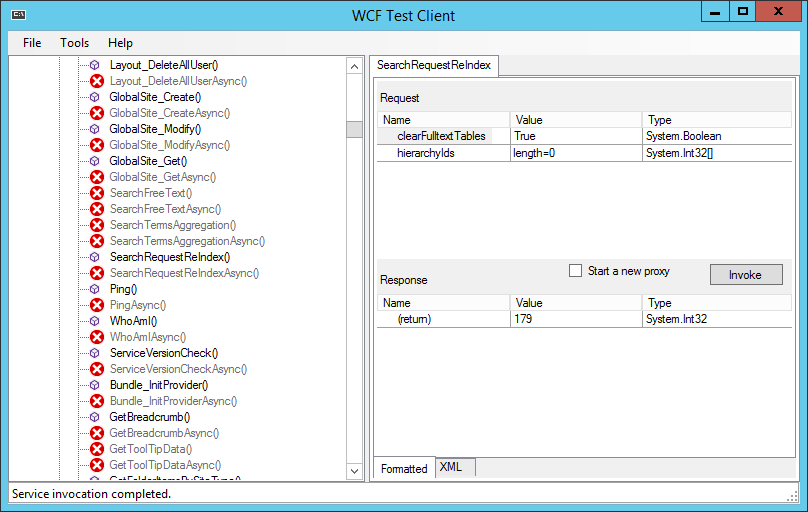
To re-index certain or all hierarchies a WCF method was implemented.
Use the WcfTestClient to call the WCF Method.
Start WcfTestClient.exe, then select "File" and "Add Service...".
Enter the following as endpoint address: http://%SERVERNAME%/pam.web/unifywcf.svc
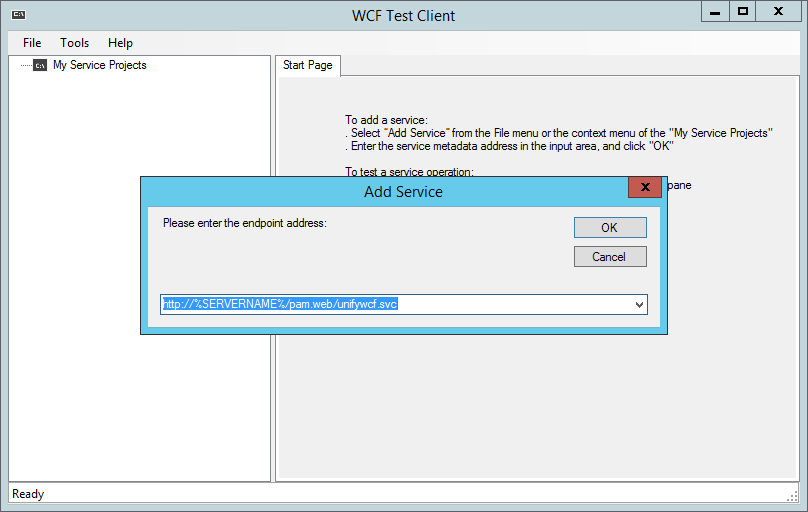
Then click on "OK".
All available UnifyWcf methods are displayed here.
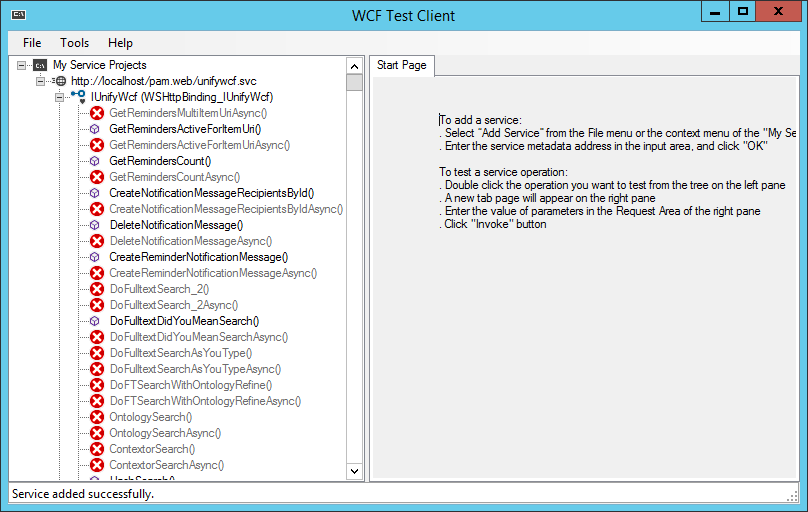
In the node "IUnifyWcf (NetTcpBinding_IUnifyWcf) " search for the method SearchRequestReIndex and double click it.
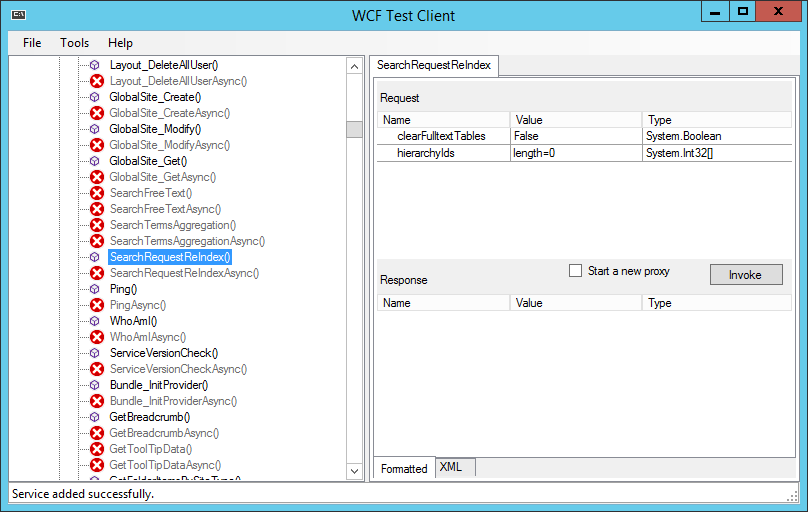
On the rights side, two Request Parameters can be entered:
clearFulltextTables
If this value is set to true, all existing entries from the tablesIP_FULLTEXTandIP_FULLTEXT_QUEUEare deleted.hierarchyIdsAn array of one or more HierarchyId's to be re-indexed. If this array is empty, all hierarchies in the system are re-indexed.
Then click on "Invoke". And in the opened "Security Warning" window click on "OK".
The result is displayed in the Response area. The number at (return) Value corresponds to the entries created in the IP_FULLTEXT table.