Migration
This tool migrates from old legacy system to the current inPoint.
- HSM to HybridStore (SQL-Server or Oracle)
- MAMEE to inPoint.CSE (SQL-Server)
- Pam for Notes to inPoint.CSE (SQL-Server)
Preparation
-
All Databases must be accessible from a single machine (copy or attach the old MAMEE databases to the new system.
-
All future users should be imported into inPoint, it's important that the email addresses of all users match the email address they have used in MAMEE. If this is not the case or some address are wrong the matching of mailbox to user has to be done manually (this included the security settings)!
-
HybridStore must be installed and the initial scripts must have been run.
-
Do not archive test files into HybridStore before doing the migration!
-
Check that all used features are compatible with HybridStore.
Not supported features
These features are not supported at all, even editing the scripts by hand will not work!
-
HSM-Encryption: HybridStore has encryption but it's not compatible with HSM
-
HSM Packetizer: zip-files created by HSM are not supported!
-
HSM Compression: the compression by MAMEE itself is supported (each file was compressed with '.gz', but the extension '.zip' was used), the one by HSM is not!
-
Store-Types: HybridStore only supports "Path" (called "FilePathLocation") and Centera (called "CenteraLocation") stores. Jukebox-Store are supported as well, but need extra settings. All other store-types must be "moved" by an Asynchronous- HSM-Task before migration.
-
PAM-STORAGE 3 Checksums: HSM uses MD5 checksums for protecting files, but for backwards compatibility it can also read crc32 checksums from PAM-STORAGE 3. These checksums are verified during read and a new MD5 is calculated an saved. All those files must be read once, so that HSM stores the MD5 checksum. (a crc32 checksum has a length of less then 12 charactes and an MD5 is 32 characters long)
Info:
To migrate the files by reading from HSM and writing into HybridStore use HybridStoreImport (this supports all feature of HSM as long as the system is still operational)!
Migration
Start the tool and follow each step.
HSM to HybridStore - Database
Configure how the wizard connects to the database of HSM and of
HybridStore.
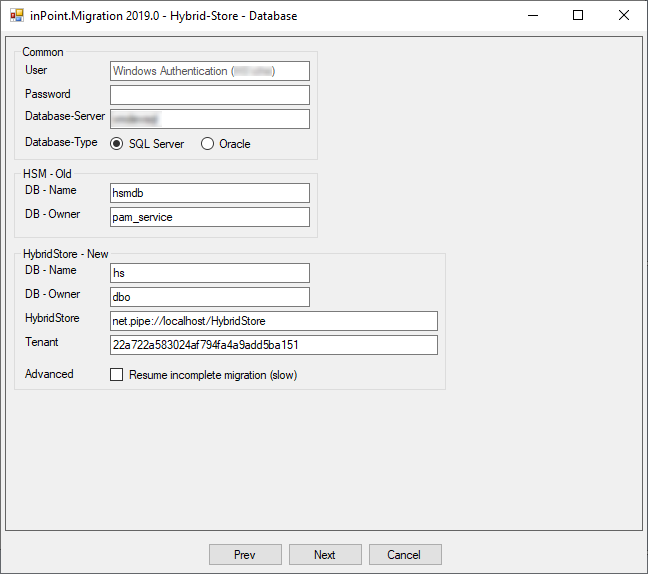
- Common: Settings for connecting to the Database
- User: (leave empty for windows authentication)
- Password: (leave empty for windows authentication)
- Database-Server: in case of Oracle, use the 'TNS connection string' for SQL-Server also include the instance name
- Database-Type: "SQL Server or Oracle"
- HSM - Old:
- DB - Name: name of the database
- DB - Owner: name of the table owner (database scheme)
- HybridStore - New:
- DB - Name: name of the database
- DB - Owner: name of the table owner (database scheme)
- Connection to HybridStore-Service (only needed when creating schemes or locations, URL and tenant; both are read from "Pam.Archive.Config", but can be changed manually)
- Advanced:l
- It's possible to resume a stopped migration, but it is much slower, because of the extra checks.
HSM to HybridStore - Mapping
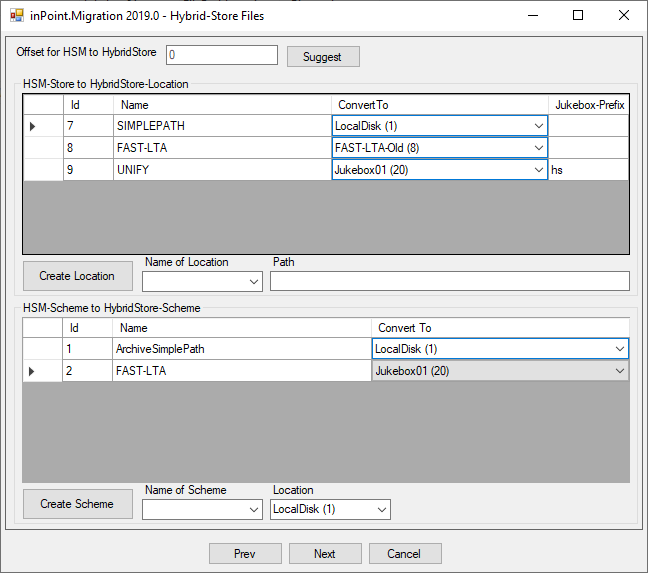
Here it's required to map each old HSM-Store to a new HybridStore-Location and each old HSM-Scheme to a new HybridStore-Scheme.
Creating a one to one relationship is the easiest. If not feasible it's at least recommended to use a different location and scheme for the migrated files. This way in the future you can more easily distinguish between migrated files and normal archived files!
It's possible to create locations and schemes on the fly in this step. It's very basic, if more options are required use "HybridStoreSv.exe CONFIG" For migration you are limited to the features similar to HSM.
-
If HybridStore is not new, it's possible to use an offset (e.g. add 1 mio to all ids which are read from HSM) use Suggest to let the wizard suggest a value.
-
Matching of HSM -Stores to HybridStore-Locations (select from the list on the right, use Do not convert to skip it.)
-
Stores/Locations, with equal names are automatically matched.
-
Create new locations by selecting the name of an existing HSM-Store or type a new name, enter the correct path where the files are placed and then click Create Location.
-
It is possible to select "Do not convert" for a store, it's strongly recommended to ALWAYS CONVERT ALL STORES and do the cleanup later.
-
HSM-Stores running as own service (aka Jukebox-Stores) uses extra directories like m000001, m000002,... if such stores are converted, enter the correct Prefix here. This must be empty, if it is a simple path store.
-
-
Matching of HSM-Schemes to HybridStore-Schemes (select from the list on the right, use Do not convert to skip it.)
-
Stores/Locations, with equal names are automatically selected.
-
Create new schemes by selecting the name of an existing HSM-Scheme or type a new name, choose a location from the drop-down. Since the location is only used during the initial archive of files, it's possible to choose any location, even if the files are stored in a different location. Then click on Create Scheme
-
It is possible to select "Do not convert" for a scheme, but it's strongly recommended to ALWAYS CONVERT ALL SCHEMES!
-
HSM to HybridStore - Verify Script
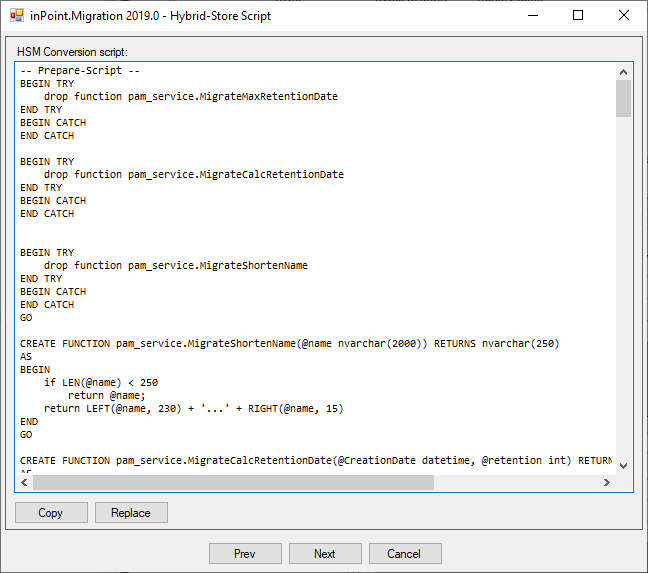
Here it's possible to verify and edit the script. For advanced users only!
If the HSM-Migration should be skipped the whole script can be removed.
Mail Archive to inPoint - Database
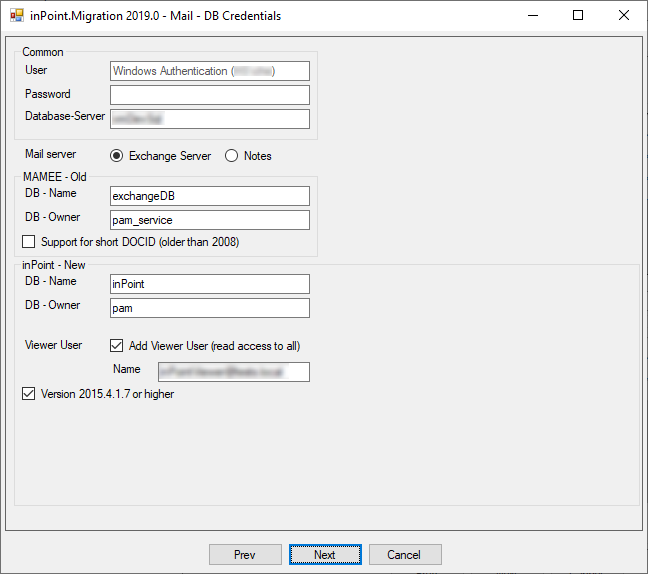
Configure how the wizard connects to the database of MAMEE or 'PAM for Notes' and inPoint. Only SQL-Server is supported! This migration can be skipped by setting the value for Database-Server to empty.
-
Common: Settings for connecting to the Database
- User: (leave empty for windows authentication)
- Password: (leave empty for windows authentication)
- Database-Server: in case of Oracle, use the 'TNS connection string' for SQL-Server also include the instance name. In the case that mail migration is not needed use an empty value here.
-
MAMEE or Pam for Notes
- DB - Name: name of the database
- DB - Owner: name of the table owner (database scheme)
- Support for short DOCID (older than 2008): Versions from MAMEE older than 2008, saved a different download url into the mail shortcut (this saves the original
DocSeqIdasMamDocSeqId).
-
inPoint - New:
- DB - Name: name of the database
- DB - Owner: name of the table owner (database scheme)
- Viewer User: It's possible to allow a special user read-access to all mailboxes (use with caution; the user must already exist in inPoint)
- Version 2015.4.1.7 or higher: Check here if inPoint is higher than 2015.3.23, there were several changes which are not compatible.
-
In case of Pam for Notes, two additional fields are shown:

- Offset for MAILBOX: when migrating into an already used system, it's important to use an offset for the mailbox ids. It must be higher than the last id in the
MAILBOXtable. - Offset for MAILBOX_FOLDERS: when migrating into an already used system, it's important to use an offset for folder ids. It must be higher than the last folder id in the
MAILBOX_FOLDERStable.
- Offset for MAILBOX: when migrating into an already used system, it's important to use an offset for the mailbox ids. It must be higher than the last id in the
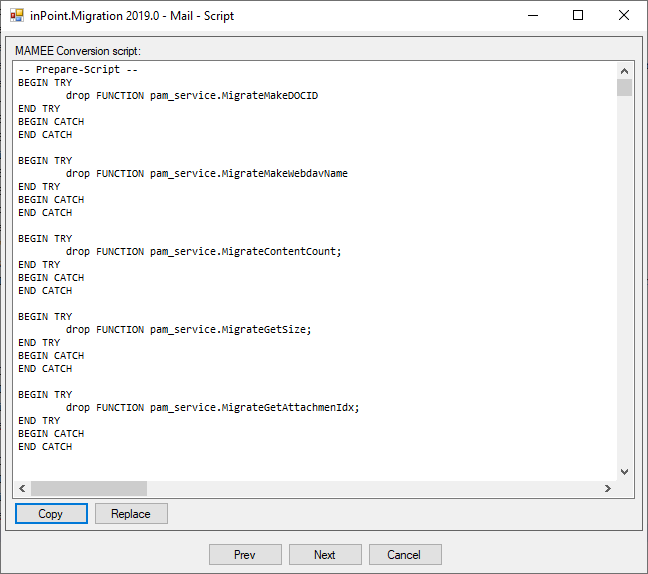
Mail Archive to inPoint - Verify Script
There are no settings to configure how the conversion of mail is done, it's only possible to change it directly in the script, but only advanced users do this!
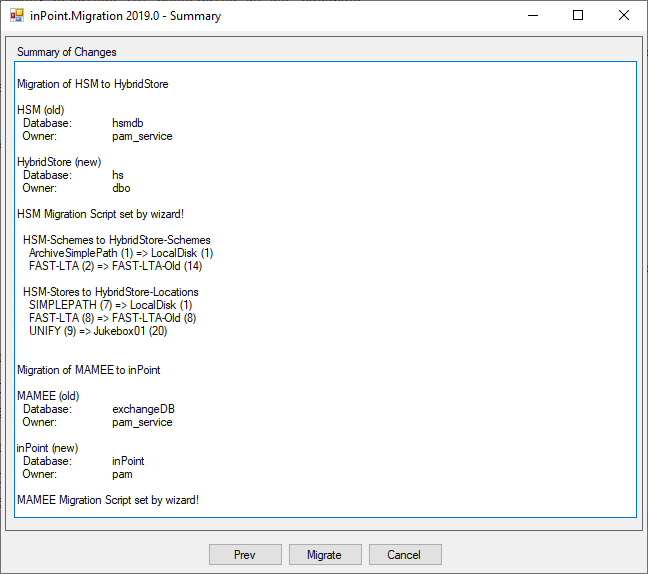
Summary
At this point nothing was changed in the system, except for creating locations and schemes in step 2. Here you get a short summary of the changes, if the scripts where changed it's stated in the wizard.
By clicking "Migrate" the migration process will start!
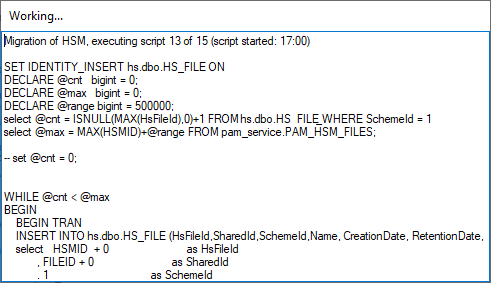
Migration
Here you can do nothing but wait (there is no cancel button for a reason) don't try to close/kill the process!
The number of scripts executed depends on the count of stores and schemes and other settings!
The scripts will flicker, while they are executed. In case of an error, the script which was currently executed will be saved into the last "Finish" tab.
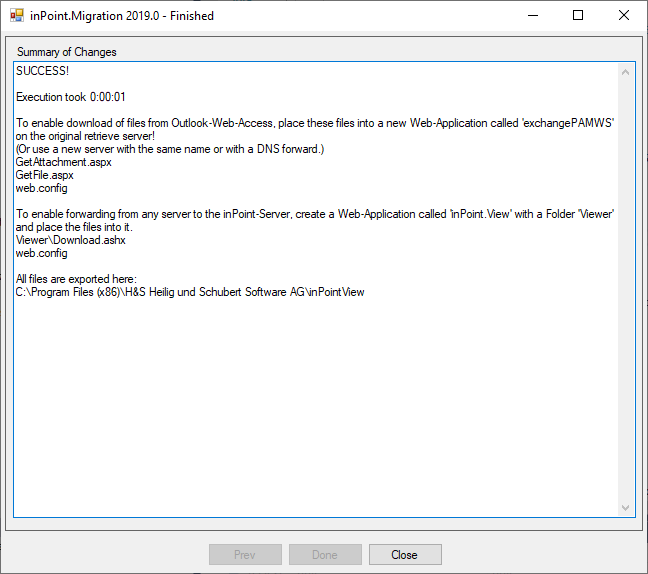
Finished
Here you see the result of the migration!
Success
Failed
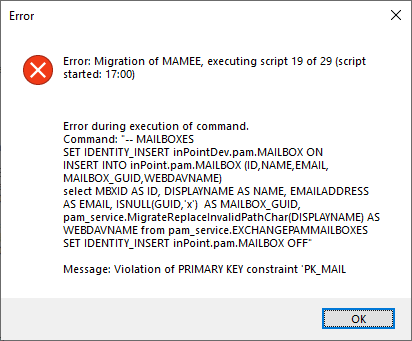
In case of an error, there is first a message you can click OK.
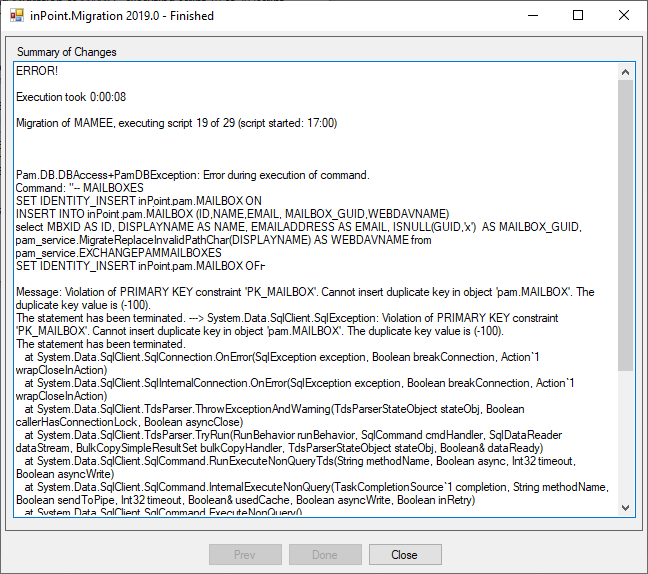
Then there is the large summary. It's possible to copy the whole content.
Legacy Web-Application
On success the migrator will also export the files necessary for a Web-Application which can be used instead of the original server.
To enable download of files from Outlook-Web-Access or when attachments where replaced with shortcuts, place these files into a new Web-Application called 'exchangePAMWS' on the original retrieve server! (Or use a new server with the same name or with a DNS forward.)
To enable forwarding from any server to the inPoint-Server, create a Web-Application called 'inPoint.View' with a Folder 'Viewer' and place the files into it.
After the export it's required to edit the file 'web.config'!
Commandline
This will export the files into a given directory and will also configure the url. (it's still advisable to check the 'web.config')
inPoint.Migration.exe /EXPORT [/inPointCoreUrl] <base_url> [/Path] <path> [/Notes]
inPointCoreUrl base_url
The URL to inPoint.Core, e.g. https:\\server.domain:8443
Path file_path
The path where the files will be exported.
Notes
Default is to export for Microsoft Exchange, use this to create scripts for Lotus Notes
Upgrade the website
If the website was generated with any version equal or lower to 2019.4 it's required to upgrade the existing website to a new version.
Upgrading is only possible using the commandline. The arguments are similar to '/EXPORT'. This command will merge the existing config file with the current version. If an empty directory is used the command will behave like the normal '/Export'.
inPoint.Migration.exe /UPGRADE [/inPointCoreUrl] <base_url> [/Path] <path> [/Notes]
inPointCoreUrl base_url
The URL to inPoint.Core, e.g. https:\\server.domain:8443
Path file_path
The path where the files will be upgraded.
Notes
Default is to upgrade for Microsoft Exchange, use this to create scripts for Lotus Notes