Administration
The administration of HybridStore can be done with inPoint.Admin.
HybridStore Plug-in in inPoint.Admin
When you select the HybridStore node for the first time, the client parts
of the HybridStore plug-ins are loaded. Then the node name changes from
HybridStore Configuration (unloaded) to HybridStore Configuration.
The plug-in also loads its child nodes.
You get a new node for each HybridStore tenant (NOTE: HybridStore tenants have nothing to do with inPoint tenants) Below this nodes you get the Jobs node.
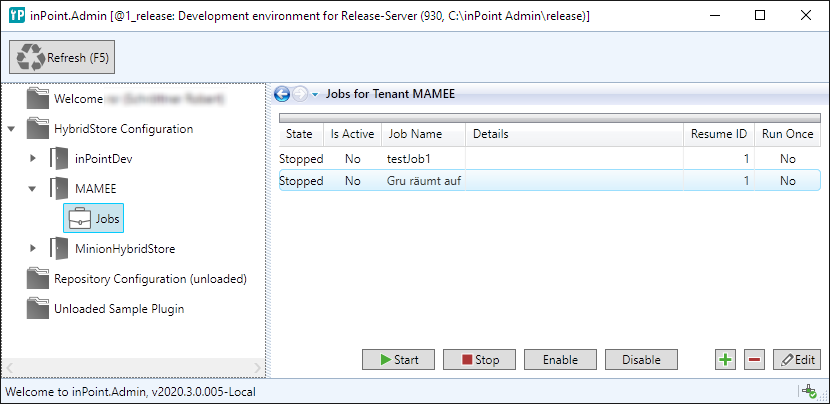
HybridStore Jobs
You can start, stop, activate, deactivate, add and delete a job. When you select a single job you can edit the job:
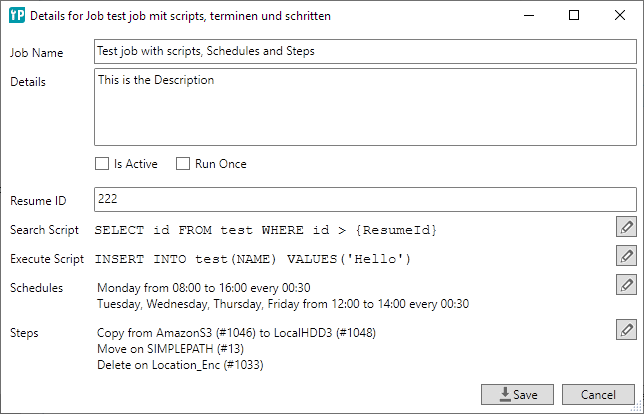
For the search script you may specify the {ResumeId} when the ResumeId
check-box is selected:

Else {ResumeId} is shown as invalid statement:

The syntax highlighting for the search- and the execute scripts ts are always done for TSQL. On Oracle you may see syntax errors even if the script is correct.
But the syntax highlighting is just a hint - it is not a restriction for saving the script.
When the search script was executed, the defined steps are executes for
each returned ResumeId.
Then the (optional) execute script was executed (once for each ResumeId):

You can also specify the ResumeId if enabled.
There can be some schedules and some steps defined:


Multiple Server
The jobs are running inside of the HybridStore server, if multiple services are existing, they can interfere with each other. In this case disable the jobs on all other servers.
Edit the config file: (default "C:\Program Files (x86)\HS Europe\inPoint.HybridStore\HybridStoreSv.exe.config") and set the value 'allowJobs'
for this HybridStore to false.
Example:
      <add id="fb4de357-5741-4aa1-94bf-0b9ec5fa2333" name="inPoint"
          allowJobs="false"
          DbType="SQLSERVER" DbScheme="ip" DbConnectionString="Data Source=localhost;Initial Catalog=inPoint;User Id=ip;Password={0}"
          DbEncryptedPassWord="**************">
      </add>
HybridStoreImport
This command line tool will import files in inPoint which are still stored in the old HSM into HybridStore. The files will be read from HSM (using the HSM interface) and stored in HybridStore. Because all data is copied it will take much longer than the database migration, but it allows switching the storage hardware an migrating incompatible features of HSM and HybridStore.
The tool allows to import a single archive unit, all units of an archive or everything. The required columns for storing files in HybridStore will be automatically added.
Requirements
- .NET Framework 4.8
- HSM must be fully operational (local installation is preferred)
- inPoint.HybridStore must be reachable (local installation is preferred)
- Connection to the inPoint database
Process description
- for each archive unit, verify that the required columns for HybridStore are existing (add them if not)
- process the Content, Extension, Version-Content and Version-Extension table of each unit (e.g PAMAU_GLOBAL_CONT, PAMAU_GLOBAL_EXT,PAMAU_GLOBAL_CONT_VER, PAMAU_GLOBAL_EXT_VER)
- select all rows, where HSMID is larger than 0
- get the file from HSM
- write the file into HybridStore (if configured use the last-modified-date or the current date to calculate the retention-date for HybridStore)
- update the row, set HSFILEID to the new value and set HSMID to NULL
- select all rows, where HSMID is larger than 0
REMARK:
- Because the importer uses the column HSMID do determine if a file was already imported, it is possible to stop and continue at any time.
- In case HSM and HybridStore are on different machines, its best to run the tool in the HSM server (copy Pam.Archive.Config to the old server)
Usage
The most practical use is to prepare a full configured Pam.Archive.config as the system will be used in the future. If required make a private copy and prepare it.
/ArchiveConfig*
<string> The path to the config file of Pam.Archive.
e.g.
C:\Program Files (x86)\H&S Heilig und Schubert Software AG\Pam.Archive\Pam.Archive.config
/ArchiveId
<number> The id of the archive to import (use -1 for all, default is to import all archives)
/UnitId
<number> The id of Unit to import (use -1 for all, default is to import all units)
/HsScheme
<number> The id of the HybridStore scheme to import (default is to read it from ArchiveConfig and the settings: HsmSchemeForCont, HsmSchemeForExt, HsmSchemeForTemp of each archive unit)
When using this parameter it is not possible to have different HybridStore schemes for Content, Extensions or temporary Extensions!
/HsUrl
<string> The Url to access HybridStore (default is to read it from ArchiveConfig and the setting HybridStoreUrl of each archive).
/Tenant
<string> The id of the HybridStore tenant (default is to read it from ArchiveConfig and the setting HybridStoreTenant of each archive).
/Log
<file path> If configured all logging is done to this file.
/Retention
<number> An explicit retention time in months (default is to read it from ArchiveConfig and the setting RetentionTimes/Default of each archive unit).
/FromNow
If set the retention time is calculated from now. (If missing the default is to use the last modified date of each file)
Remark
- If the retention-time is read from 'Pam.Archive.Config', only the simple configuration, without the special 'Command' is allowed.
- If an archive unit is configured to store any data in 'PamLocalStorage' it can't be imported, either skip it or temporarily configure it to use HybridStore.
Example
Import all known archive units, read all settings from 'Pam.Archive.Config', set the retention time during archive (last modified of each file)
HybridStoreImport /ArchiveConfig "C:\Program Files (x86)\H&S Heilig und Schubert Software AG\Pam.Archive\Pam.Archive.config"
HsLegacyConnector
This webservice will run in IIS and mimic the old HSM web-service (PAM4HSM) but will use HybridStore for storing files.
Requirements
- .NET Framework 4.8
- IIS
- inPoint.HybridStore must be reachable (local installation is preferred)
Description
After the installation the webservice will be reachable at this address (use the full qualified machine name for remote access):
http://localhost/PAM4HSM/PAM4HSMWS.asmx
Settings
All settings are configured in web.config in the section of <appSettings>.
HybridStoreUrl*
<string> The Url to access HybridStore.
e.g.
net.pipe://localhost/HybridStore
HybridStoreUrlTenant
<string> The id of the HybridStore tenant.
e.g.
93db755f-d36c-4d23-9b8f-d7c5574a3bb8
ReadOnly
<bool> Use true to allow only read access (default is false).
log4net.Config
<string> Relative or absolute path to the log4net configuration file.
e.g.
..\Pam4Hsm_Log4net.config
Remark
Must be not the same directory as "web.config" otherwise the IIS will be reset after every change in the file.
log4net.Config.Watch
<bool> Use true to let log4net watch for changes in its configuration file
Example
    <appSettings>
      <add key="HybridStoreUrl" value="net.pipe://localhost/HybridStore" />
      <add key="HybridStoreUrlTenant" value="93db755f-d36c-4d23-9b8f-d7c5574a3bb8" />
      <add key="ReadOnly" value="false" />

      <add key="log4net.Config" value="..\Pam4Hsm_Log4net.config" />
      <add key="log4net.Config.Watch" value="True" />
    </appSettings>
For more details about log4net read the more detailed documentation.