Item Actions
Overview
Those are shown in the right docked ActionPanel anytime the user chooses the "..." More button or opens a Context Menu (e.g. in the Documents list).
inPoint.Web comes pre-packaged with an extensive list of Categories and Item Actions, you can:
- override any one of those or
- add your custom ones
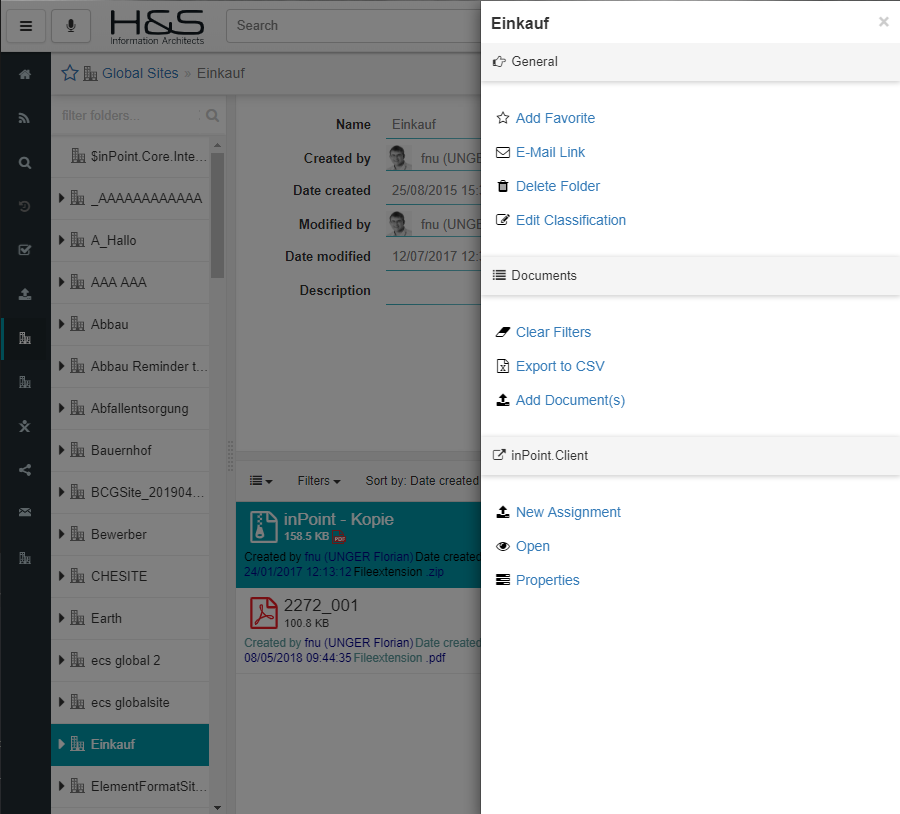
See Configuration for setting this up.
Categories
Following predefined Category ids are currently available:
filter
order: 10
multiSelection
order: 20
folder
order: 40
Note: will only be shown when isFolder is thruthy.
doc
order: 50
Note: will only be shown when isDoc is thruthy.
wf
order: 70
reminder
order: 80
history
order: 90
sync
order: 100
clipboard
order: 110
recyclebin
order: 130
offline
order: 140
Note: All other categories are hidden in Recycle Bin and vice versa.
Deprecated
The following categories are deprecated and their itemActions should be moved to either folder, doc or a custom category.
general
order: 30
doclist
order: 60
Reference
Following predefined Action ids are currently available:
doclist_resetFilters
Reset the set Filters and Sorting for the currently visible Documents list.
doclist_exportCsv
Export the current (optionally filtered) list of Documents to a .CSV File.
doc_preview
Open the Document Preview Modal window.
doc_popout
Open the Document Preview in a new Browser window.
doc_emailLink
Open the Share Modal to send a link to the current Document.
Note: Short link to share with shareType set to "link"
doc_emailAttachment
Open the Share Modal to send the current Document as an attachment.
Note: Short link to share with shareType set to "copy"
doc_download
Download the current Document.
doc_delete
Delete the current Document (after confirmation Dialog).
doc_editClassification
Switch the current Document classification into Edit mode.
doc_editWebDav
Open the locally installed Office application and edit the currently selected document (with WebDav).
doc_editCloud
Open the Cloudservices Webeditor to edit the current file.
doc_editCloudLocal
Opens the local installed Office Application and edit the currently selected document (with WebDav).
doc_previewAndEditClassification
Open the Document Preview Modal window and trigger the current Document classification Edit mode.
doc_uploadVersion
Upload a new Version to the current Document.
doc_upload
Archive a new Document into the current Folder.
doc_lock
Locks the current Document.
doc_unlock
Unlocks the current Document.
doc_restore
Restores the current Document.
doc_clear
Permanently deletes the current Document.
doc_print
Toggles Print dialog for PDFs
doc_previewAndPrint
Open the Document Preview and toggles Print dialog (requires PDF preview)
doc_fav_add
Add the current document as a Favorite.
doc_fav_remove
Remove the current document from the Favorites.
doc_share
Start sharing current document/folder
doc_share_edit
Edit existing Share by adding/removing Users, changing their permissions or stop sharing
doc_share_web
Send the current item's link (and content if a Document) to the Browser's Share dialog.
Note: will be visible only when supported - currently only Edge/Chromium and Android/iOS mobile/tablets.
doc_copy
Select target to copy current document.
doc_link
Select target to link current document.
doc_move
Select target to move current document.
doc_subscribe
Subscribes the current User to the current document.
doc_unsubscribe
Unsubscribes the current User from the current document.
folder_fav_add
Add the current folder as a Favorite.
folder_fav_remove
Remove the current folder from the Favorites.
folder_share
Start sharing current document/folder
folder_share_edit
Edit existing Share by adding/removing Users, changing their permissions or stop sharing
folder_share_web
Send the current item's link (and content if a Document) to the Browser's Share dialog.
Note: will be visible only when supported - currently only Edge/Chromium and Android/iOS mobile/tablets.
folder_link
Select target to link current folder.
folder_move
Select target to move current folder.
folder_subscribe
Subscribes the current User to the current folder.
folder_unsubscribe
Unsubscribes the current User from the current folder.
folder_preview
Browse to the selected Folder replacing the current Window.
folder_popout
Open the Folder Preview in a new Browser window.
folder_emailLink
Open the Share Modal to send a link to the current Folder.
Note: Shortlink to share with shareType set to "link"
folder_delete
Delete the current Folder (after confirmation Dialog).
folder_editClassification
Switch the current Folder classification into Edit mode.
folder_restore
Restores the current Folder and all its containing Folders and Documents.
folder_clear
Permanently deletes the current Folder and all its containing Folders and Documents (after confirmation Dialog).
ip_archive
Launch inPoint.Sync to archive into the current Folder.
ip_browse
Open the inPoint.Client to the current Folder.
ip_properties
Open the inPoint.Client Properties Dialog for the current item.
ip_edit
Use inPoint.Sync to edit the current Document in the original locally installed Application.
search_favorite_add
Add the current search query as a Favorite.
search_favorite_remove
Remove the current search query from the Favorites.
search_preview
Browse to the selected search result replacing the current Window.
search_popout
Open the search results in a new Browser window.
wf_info
Displays item and workflow informations for workflows with items (folder/doc)
wf_info_noitemuri
Displays workflow information for workflows without items (folder/doc)
wf_report
Displays related workflow reports in a Document Preview Modal window.
wf_start
Displays a list of available Workflows to start with selected Document(s)/Folder in a Modal window.
clipboard_copyItemLink
Copies the current visible Folder (or Document) as a View link to the Clipboard (using mini-views).
clipboard_copyItemUri
Copies the current visible Folder (or Document) as an ItemUri to the Clipboard.
Note: only shown to isAdmin
reminder_manage
Lists available Reminders and allows to manage (create/edit/delete) Reminders.
offline_add
Marks the current folder to get synchronized on next periodic check and be available offline. This is recursive - meaning it includes ALL subfolders and the first page of any Documents list and Previews.
Note: only shown when the offline feature flag is active for the current user.
offline_remove
Removes the current Folder from being synchronized and available offline.
Note: only shown when the offline feature flag is active for the current user.
ip_commandAction_itemSendAsEmail
Creates an Email Draft in your preferred and inPoint supported Mail Client with the selected document(s) attached
ip_commandAction_itemSendAsEmailLink
Creates an Email Draft in your preferred and inPoint supported Mail Client with inPoint.Standalone Linkt to the selected document(s)
shouldBeVisible Conditions
You can specify a list of Conditions when a specific Action should be visible to the User. Those are pre-defined and available in any combination.
- You can combine as many as you need
- You can negate a condition by adding a
!beforehand - ALL conditions must be met for the Category/Action to be displayed
shouldBeVisible: [ "isAdmin", "isDoc", "!isSyncEnabled", "isWindows" ]
isAdmin
The current User must be an Administrator.
isFav
The current Item is a Favorite.
isDoc
The current Item is a Document.
isFolder
The current Item is a Folder.
isValidItemUri
The current Item has a valid itemUri (starting with pam-item://)
isSyncEnabled
The inPoint.Sync integration is enabled.
isSyncForced
The inPoint.Sync integration is enforced via cascading settings.
isSyncUpload
Combined check of isWindow, isSyncEnabled and isSyncForced.
isWindows
Running under Windows OS.
isMiniView
Running within a mini view
isWorkflowEnabled
Is a Workflow Portal defined.
isSpecialFolder
The current Items URI is either a SharedDocumentsUri, a RecycledDocumentsUri or a RecycledBinUri.
hasSearchType
The current Item is a Search Request and has the specified type.
Valid Types are 0 (Favorite), 1 (Recent), 2 (Freetext) or 3 (Form)
hasContext
Check the context of current Item, e.g. hasContext:isEditAllowed (internal).
isDocAssignmentAllowed
The current user is allowed to assign Documents.
isDocDownloadAllowed
The current user is allowed to download the current Document.
isDocEditAllowed
The current user is allowed to edit the current Document.
isDocSendByEmailAllowed
The current user is allowed to send the current Document via Email.
isEditAllowed
The current user is allowed to edit the current Folder.
isFolderClassificationEditAllowed
The current user is allowed to edit the current Folders classification.
isFlatAU
The current Item is or is within a FlatAU.
hasItemStatus
Check the current Item status, e.g. hasItemStatus:Locked
| Status Name | Description |
|---|---|
| None | nothing set |
| Reminder | has reminder(s) |
| Share | is shared |
| Relation | has a manual relation to another item |
| has a converted PDF version | |
| WFReport | has at least one Workflow-Report relation |
| Note | has note(s) |
| Link | has a shortcut to another folder |
| MailHasAttachment | mail with attachments |
| MailReplied | mail with a reply |
| MailForwarded | forwarded mail |
| Locked | checked out |
| Subscription | subscribed to by the current User |
| Deleted | was deleted |
| AnyParentDeleted | any parents have been deleted |
| Signed | is digitally signed |
isRecycleBin
When this item or any of its parent is in the RecycleBin.
isOnline
When the Browser has an active Network connection and the inPoint.Web Server is reachable.
NOTE this condition is pre-assigned by default to all itemActions unless this or isAnyOnlineStatus is specified.
isAnyOnlineStatus
Will always display no matter the Network connection status (so basically always a match).
isMultiSelection
When multiple results are selected. NOTE this condition is pre-assigned negated by default to all itemActions unless this or isAnySelection is specified. Currently only specific itemActions support multi selection.
isAnySelection
Will always display no matter, if single or multi selection
hasExtension
When this item has the specified extension
NOTE Documents only; extensions are case-insensitive.
hasFeature
When the feature flag is enabled for the current user