Search
Global Search
On the top of the fullstack inPoint.Web you can always find the Global Search.
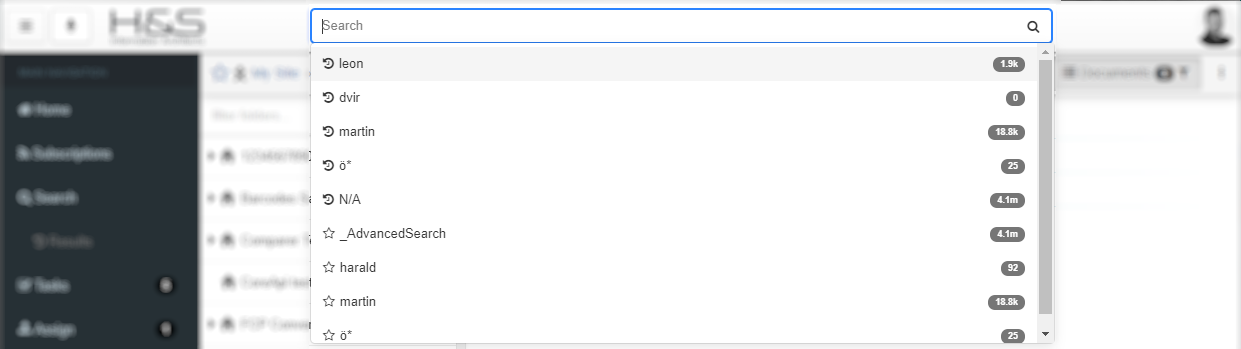
This includes:
- your recent searches
- your favorite searches
You can also type any freetext word(s) you wish and by pressing Enter you will see the full search results.
Note: if you start the search while viewing a specific folder, the Search will automatically be scoped to that folder (and any subfolders).
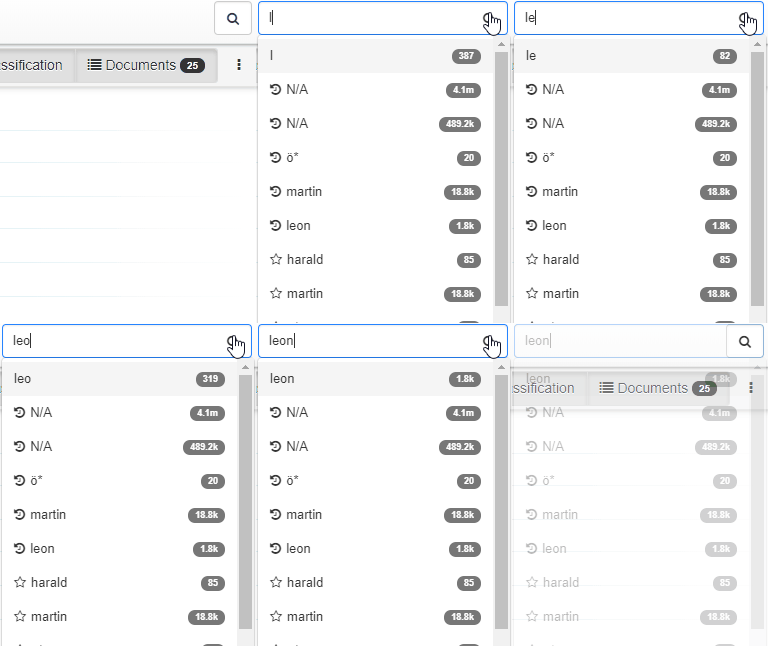
Note: how the counter is automatically updating when the searchStatistics feature is enabled.
Simple Fulltext Search
Using the simple fulltext search you can find anything you need. Search results are included on the same page to make it easier to refine your search without having to go back and forth between page views.
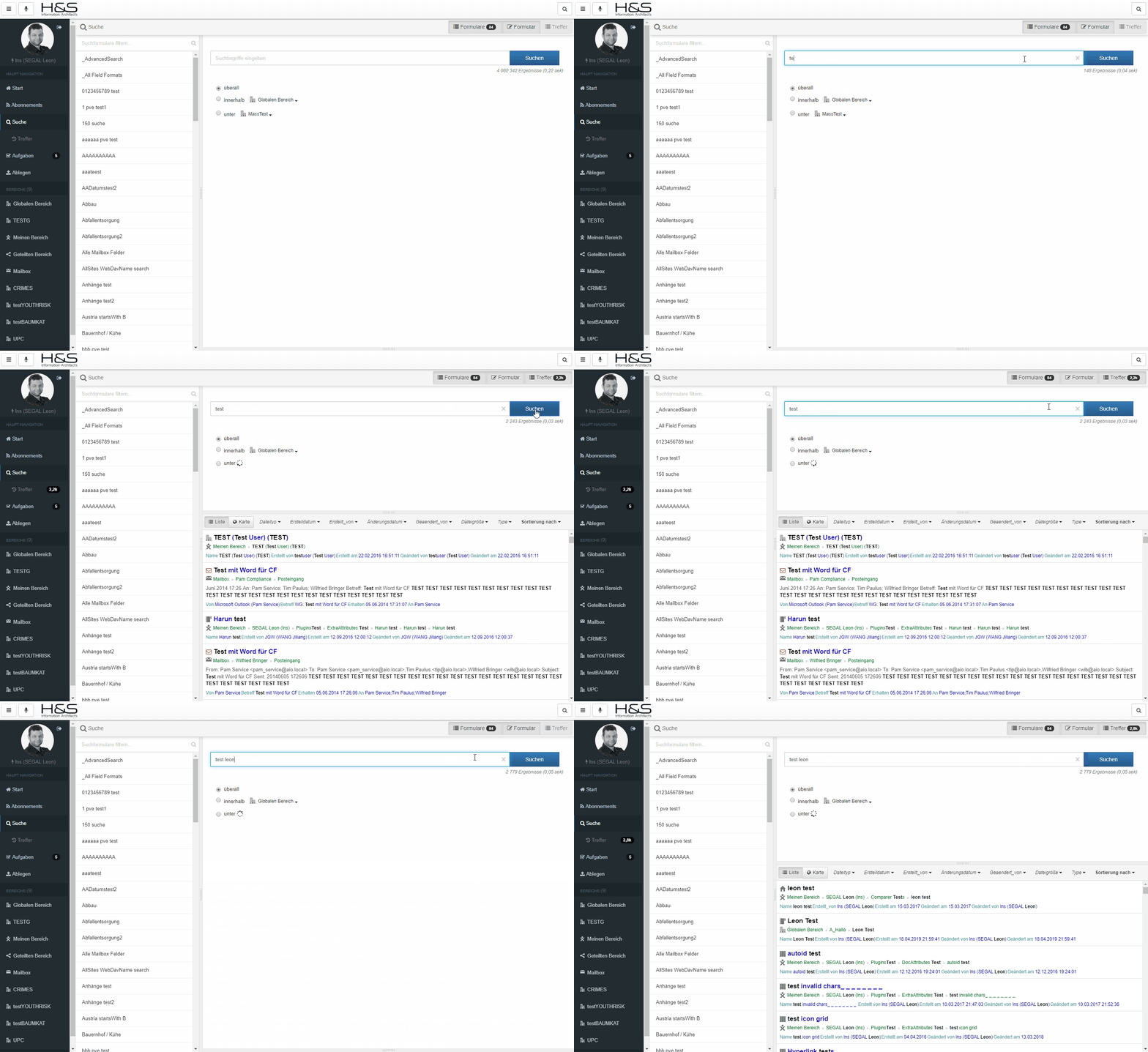
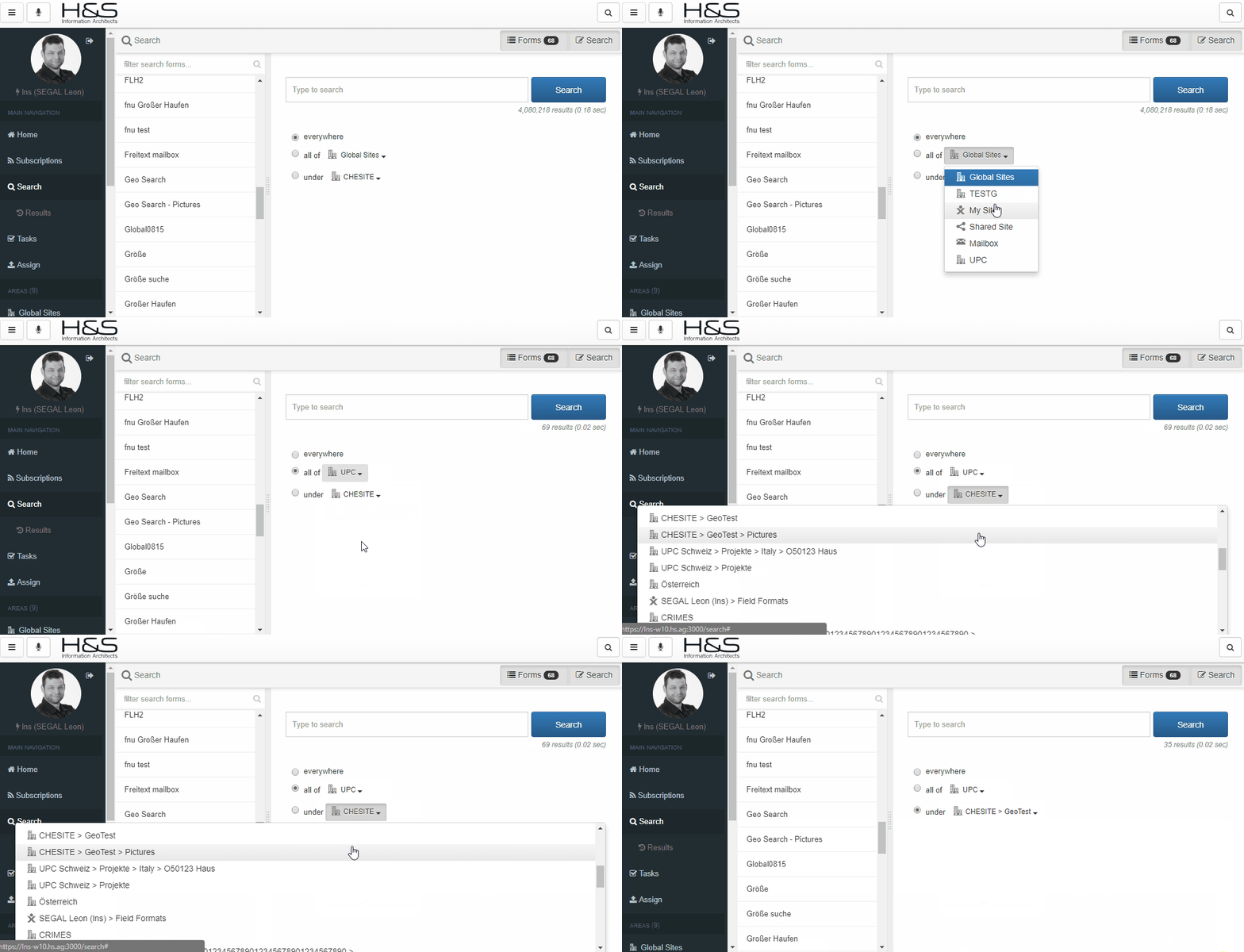
You can also refine your search scope which will give you better results:
- select
Everywhereto search the whole system - select an
Areato limit searches to that specific Site- Note: this includes all Areas from your left Sidebar
- select one of your Recent Folders
Advanced Search
We are currently testing an feature called Advanced Search which disables the above Simple Fulltext Search when selected and replaces it with four separate fields;
- contain all of these words
- contain exact this group of words
- contain at least one of these words
- contain none of these words
This fields can be filled in parallel. All filled fields will be concatinated with AND and search through all indexed information to match.
Filters
You can pre-filter all your search request with the following filters
- Type (
All,DocumentorFolder) - Modified Date
- Modified by
- Creation Date
- Created by
Additional Filters, when type Document is selected
- File Size
- Fileextension
Search Forms
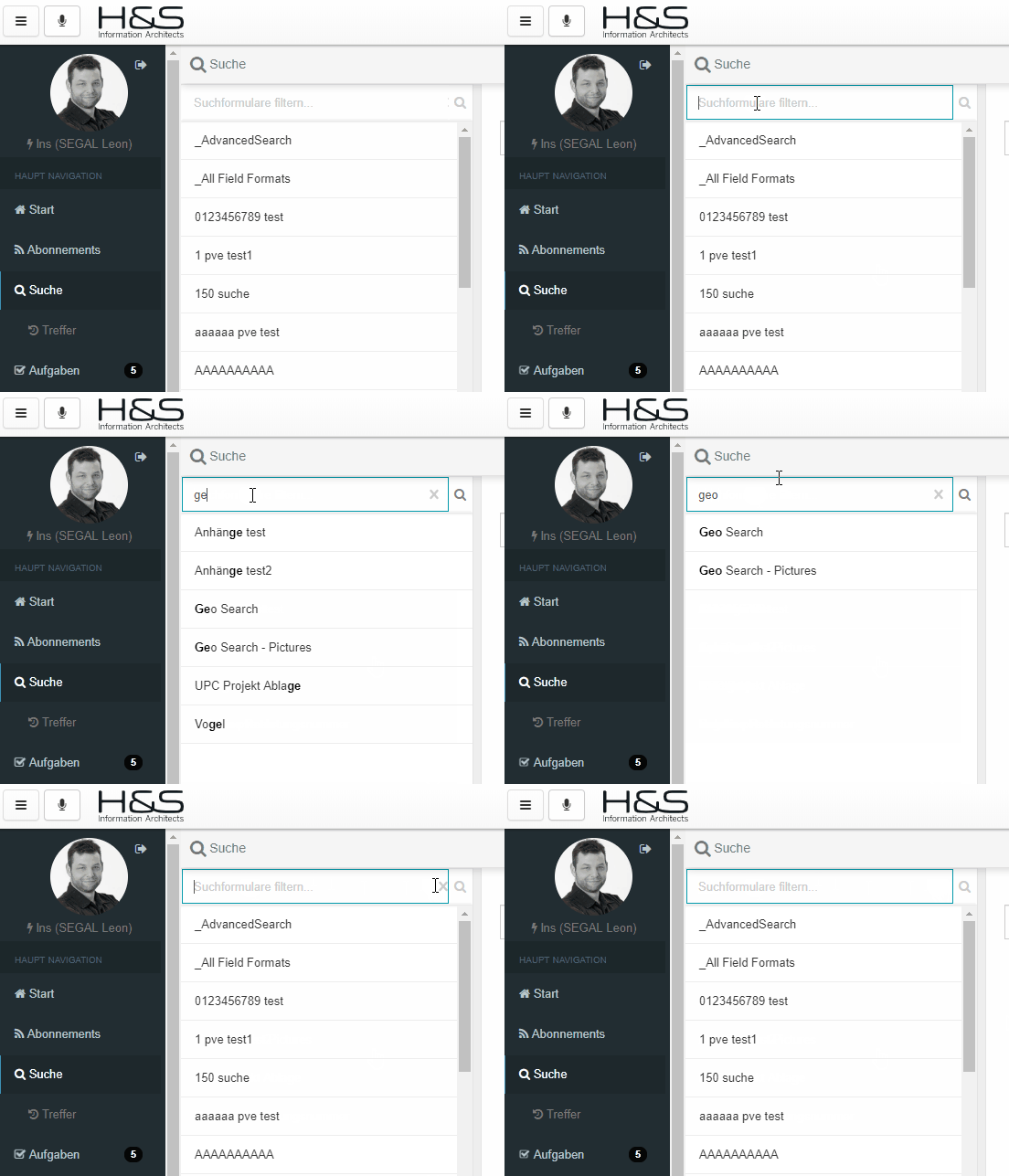
In the same Search view on the left a list presenting all available Search Forms, making it easier to:
- filter to find the right one
- easily switch from one to the other
inPoint.Web supports all standard Search Forms fields as defined in inPoint:
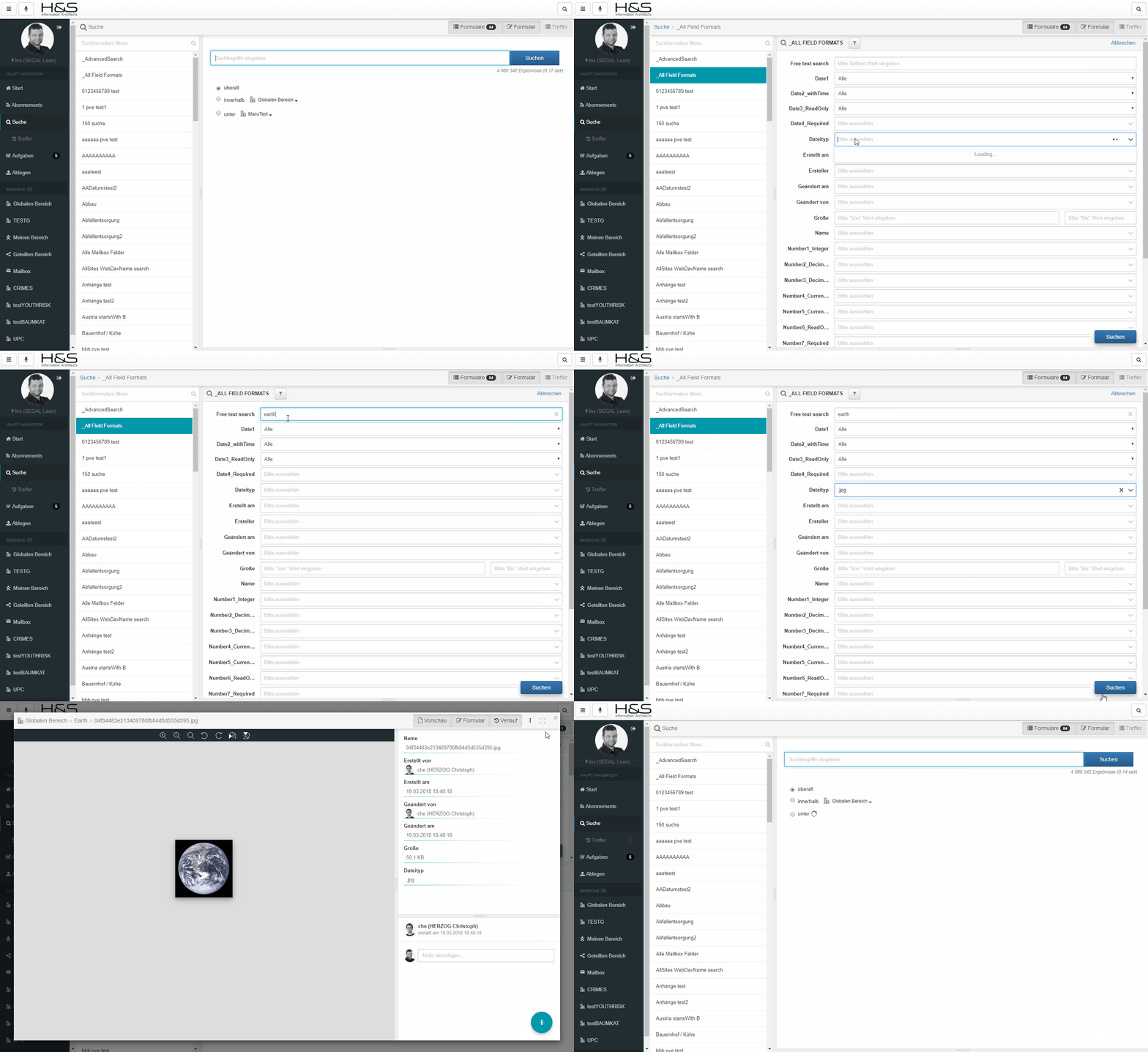
Search Form Operators
Including Search Operators:
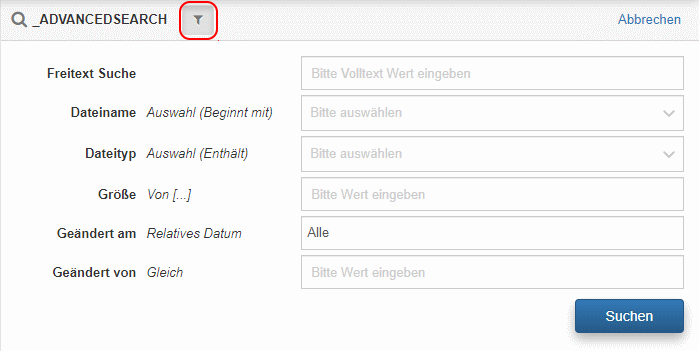
Note: this toggle is remembered per user.
Search Form Layout
Some custom layouts (as defined directly in the Search Form):
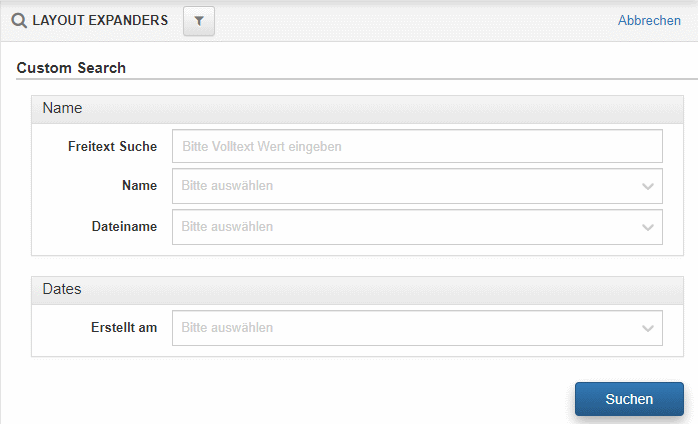
Additional layout support (i.e. TabLayout) is planned for 2019.2.
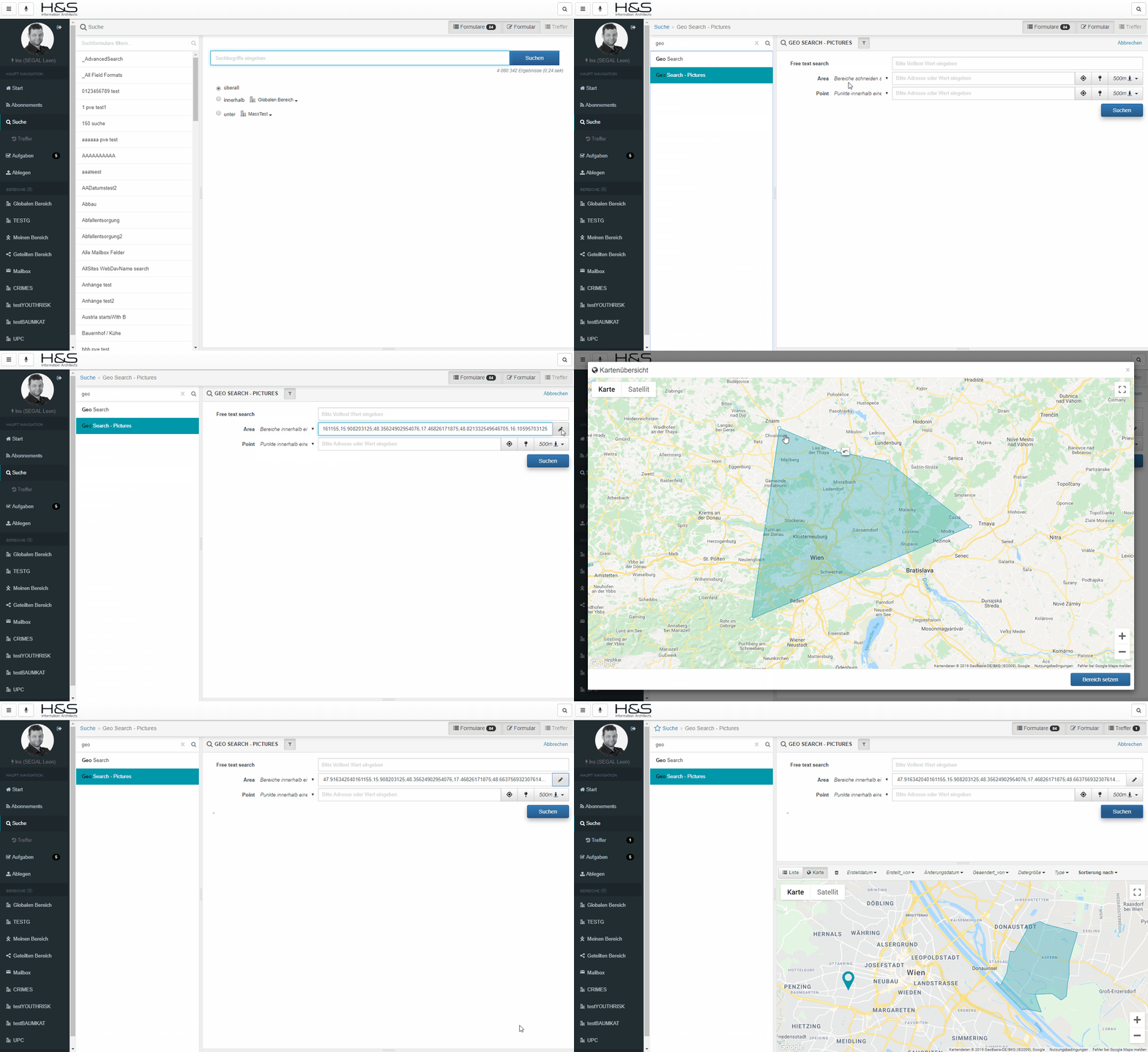
Search Form Geo
SearchForms fully support all Geo Field types and Operators.
Search Result
Search results show document and/or folder rows. You can select one or multiple rows and apply CommandActions via the ActionPanel on it. The Click behavior on a row is modified based on the view mode.
List
URL param: vm=List
also default behavior
Display results and all their indexed properties in a List. If you click on a document, a Preview Modal is rendered. If you click on a folder, you will be redirected to the folder.
Map
URL param: vm=Map
Displays results with geo points and areas on a Map. If you click on any result, the ActionPanel is triggered.
Note: Only results containing geodata will be shown. Pagination is manual
Details/Grid
URL param: vm=Grid
Display results and their common (by common name) indexed properties in a detailed Grid. The Column Headers consist of all Display Names for their related Common Name. If you click on the first column you will have the same behavior as List. All other columns will select the row. Right-click will trigger ActionPanel.
Notes:
- If there are no common indexed properties, the default sort by configuration (global or per Global Site) are shown as columns
- You can only sort by Common Names with the same Type or as defined in the sort by configuration.
- To improve the experience target formats containing the same common names and types.
Filtering Lists
There are several lists (Actions, Folders, Search Forms, Documents, Archive Targets, etc...) and the user can filter them by the visible name.
Filtering Folders
The Folder view allows filtering of the current visibile subfolders.
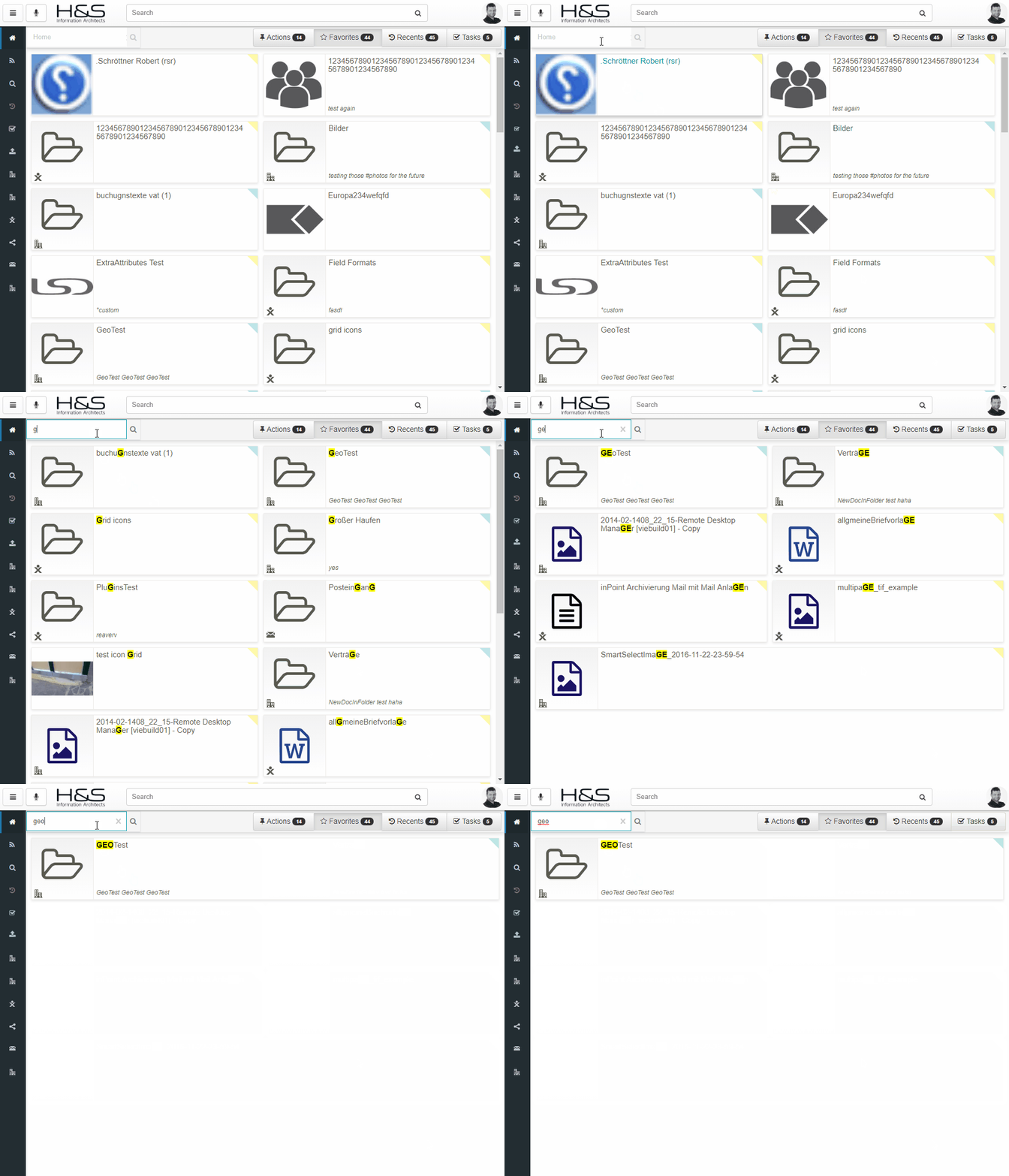
Filtering Cards
You can also filter cards wherever they are visible like in the Home view; switching the toggles keeps the filtering!
Document Filters
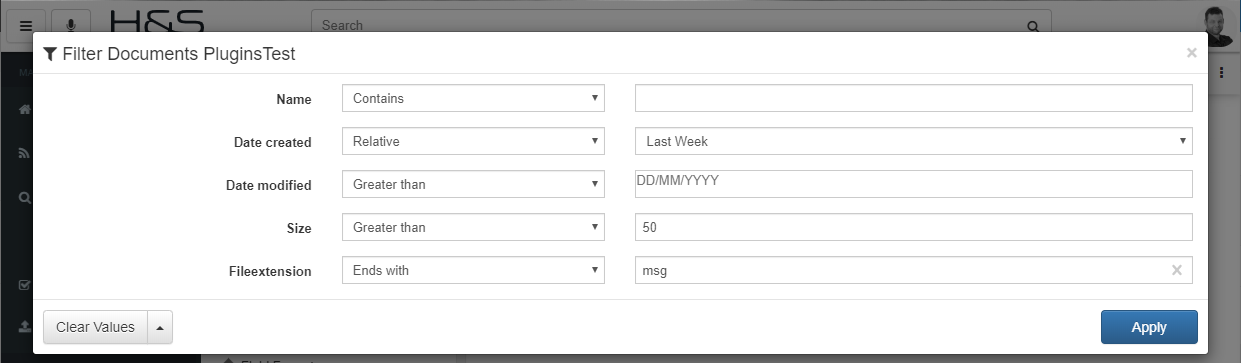
Document lists can be filtered by using advanced filters; you can also set your Defaults that apply to every folder or specific to a subset of pre-defined subfolders.
These also include some advanced operators and support for Relative Dates.
Custom Attribute Icons & Colors
Attribute icons and colors, based on values (also other fields), can be configured in the defaults section.
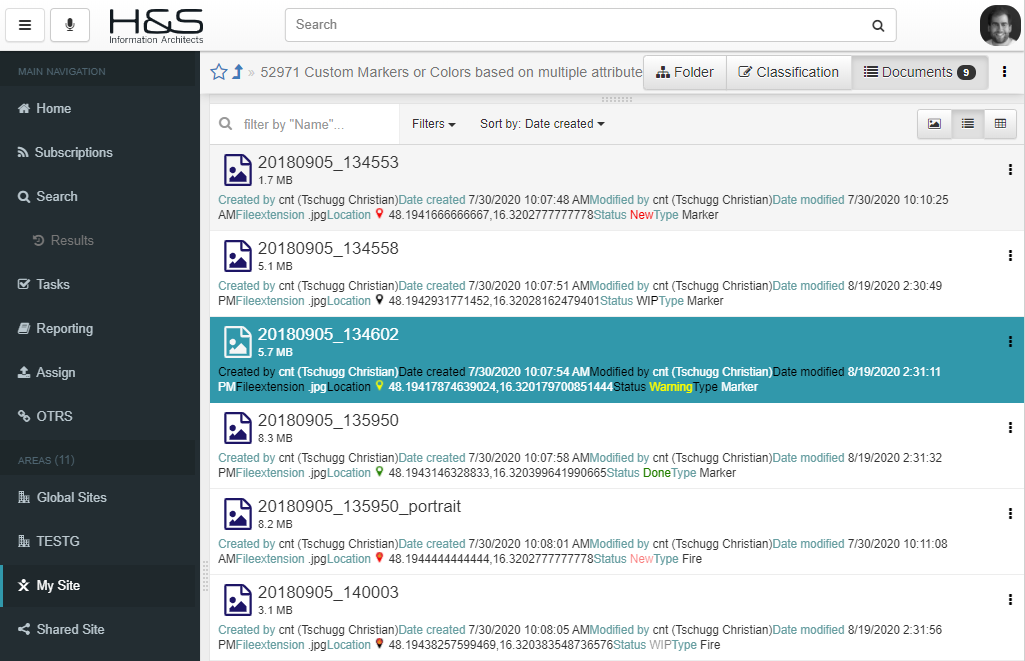
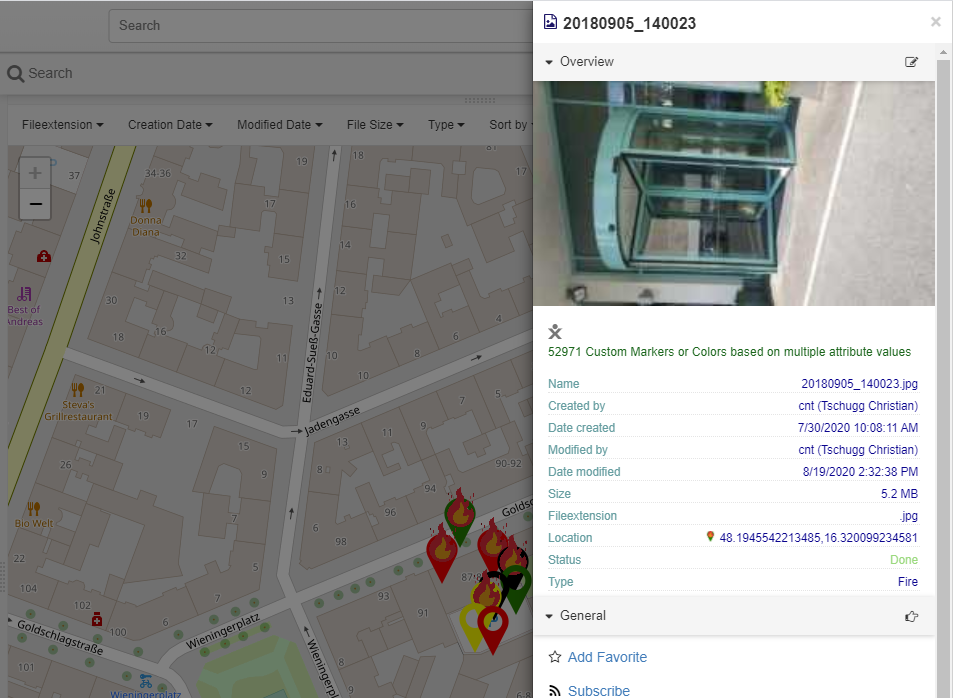
Example:
"defaults": [{
    "visualRules": [{
      "targetNames": ["status"],
      "iconImage": "/custom/icons/{Status}.svg",
      "iconSize": [20, 20],
      "rules": [{
        "filters": [{ "name": "status", "value": "wip" }],
        "color": "orange",
      }, {
        "filters": [{ "name": "status", "value": "done" }],
        "color": "green",
      }, {
        "filters": [{ "name": "status", "value": "new" }],
        "color": "red",
      }]
    }]
}]