Installing an SSL Certificate
Overview
An SSL Certificate is used to bind to an HTTPS Web Port ("Server Authentication") and to sign the Identity Tokens ("Code Signing"). There is no way to run only under HTTP, and if you want to access the sites from external browsers (not in the domain) this certificate should be from a valid CA (Certificate Authority) – either purchased or from free providers (like Let's Encrypt). Otherwise an internal Certificate issued from your local Domain Controller is enough.
The Certificate must:
- Have the correct CN (Common Name) and DNS Name set to the FQDN of machine (in lowercase) which will be used to access inPoint.Web
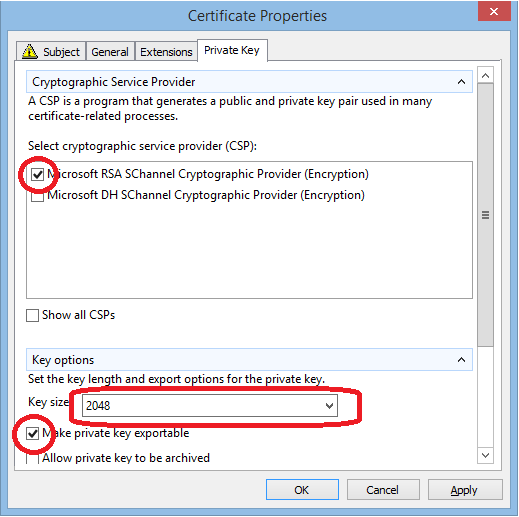
- Be at least 2048RSA strong
- Have a private key and be exportable
- Be created with RSA "Microsoft Strong Cryptographic Provider" (see Error: Invalid Provider type specified)
There are 3 steps required:
- Issuing a Certificate Request by either
- Submitting the request and retrieving the Certificate by either
- Installing the Certificate on the local machine
1. Request
Issuing a Request via IIS
If following is true:
- IIS already installed on host machine
- part of an Active Directory
- "Microsoft Active Directory Certificate Services" enabled in AD
Then you can use IIS to issue a certificate request and install it.
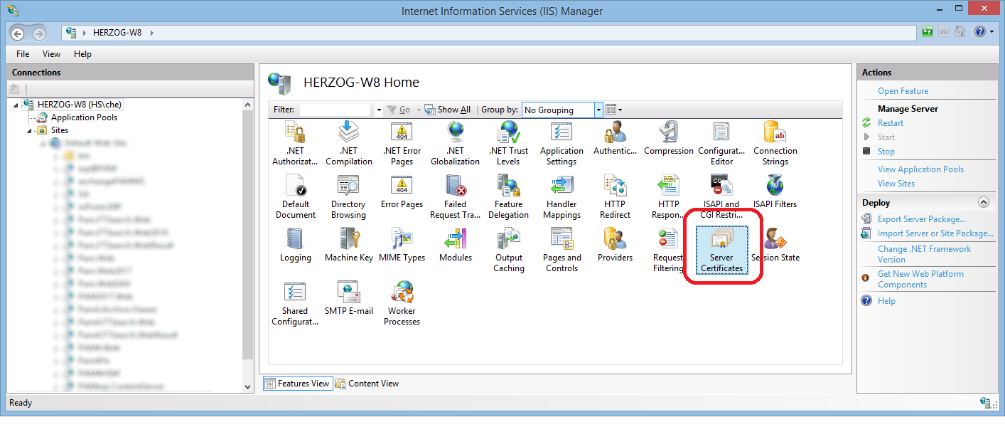
Open IIS Manager and select "Server Certificates":
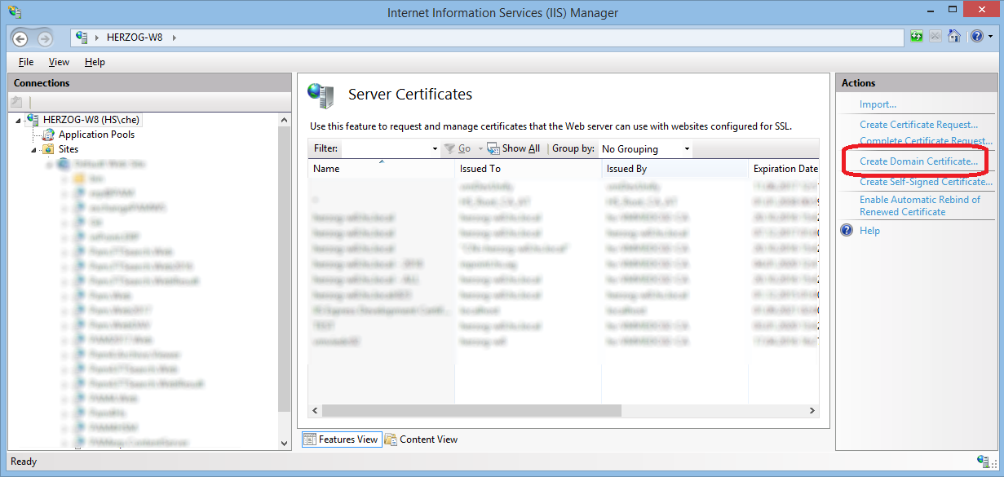
"Create Domain Certificate":
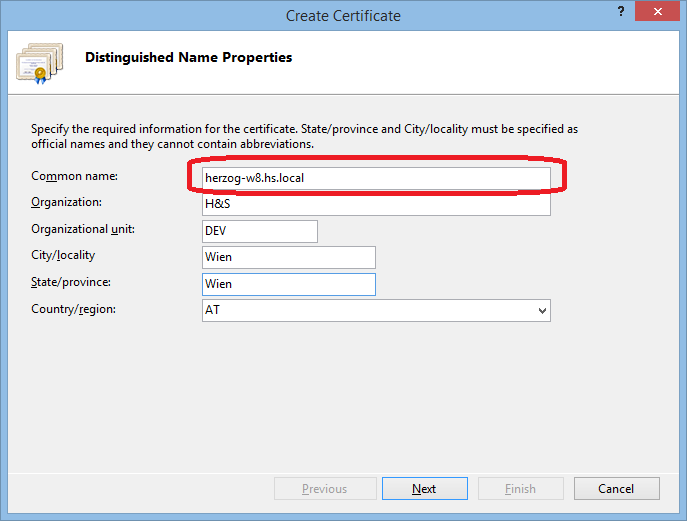
Enter in Common name the fully qualified name of the hostname, and fill the rest of the values:
Click Next and the Select a CA:
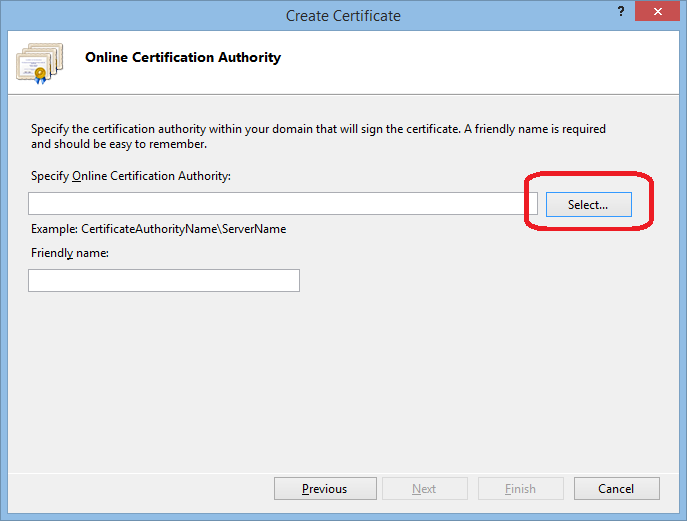
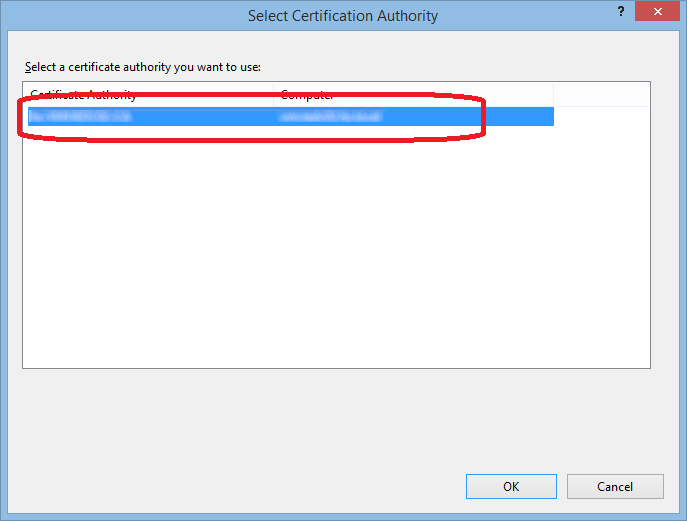
Select your domain controller:
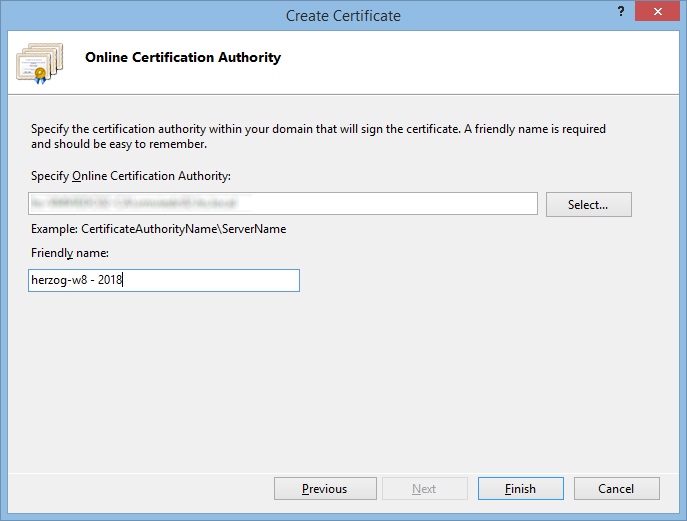
Fill in the friendly name (will only be visible in the Certificates Manager):
Issue a Certificate Request manually
In Windows‘ search box type "Manage Computer Certificates",
then right-click Personal, All Tasks / Advanced Operations / Create Custom Request
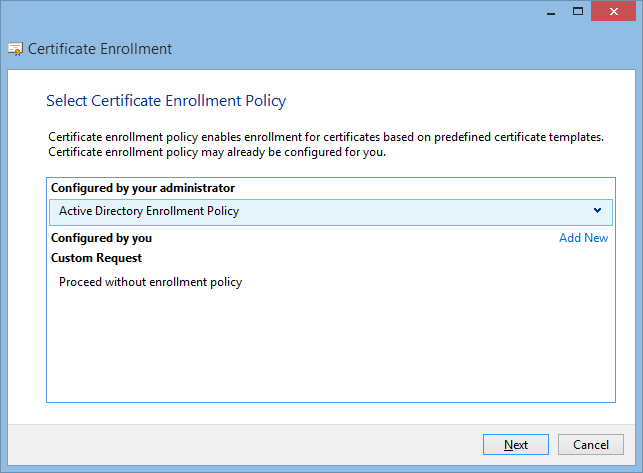
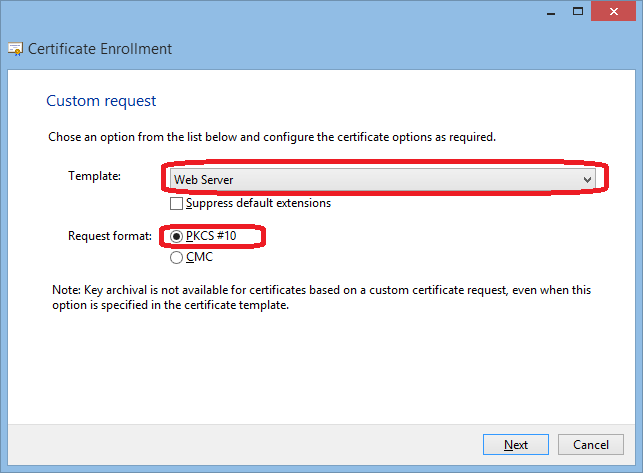
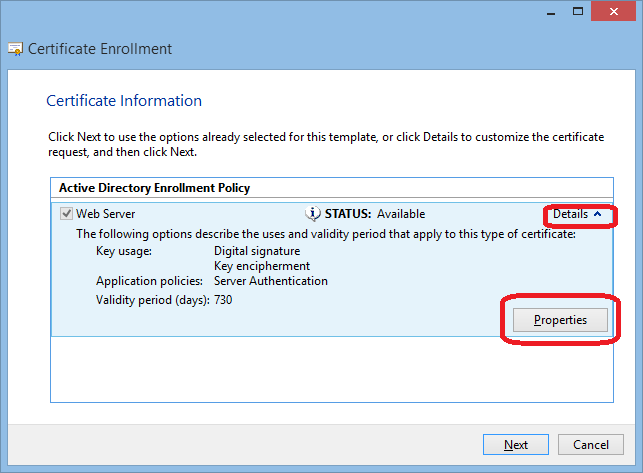
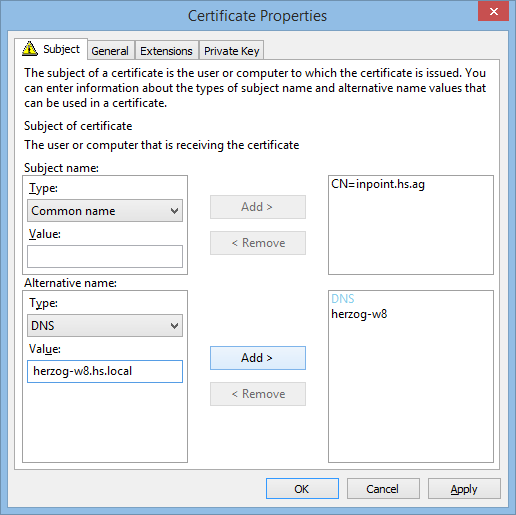
**Important:
**The same subject name should be added also in the alternative names!
Subject name -> Type: Common name
Alternative name -> Type: DNS
In the example (Screenshot):
inPoint.hs.ag should be inside "subject name" AND "alternative name"
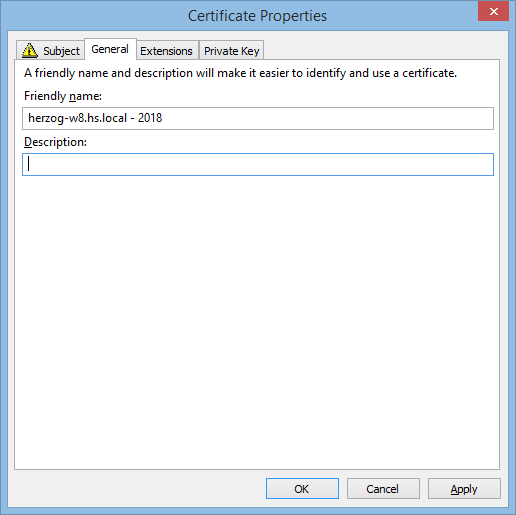
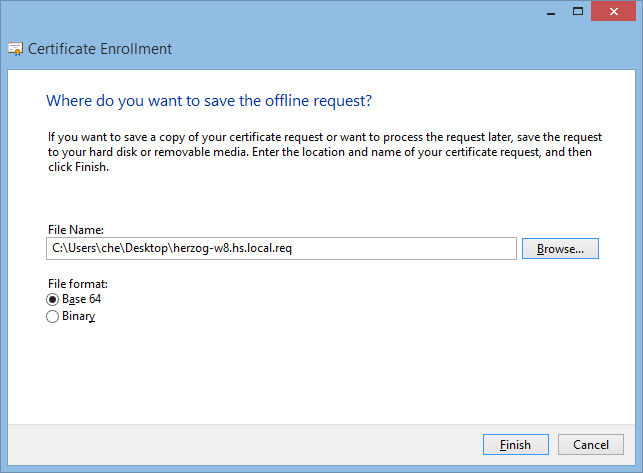
2. Submit Request
Create Certificate (from .req) using CertReq

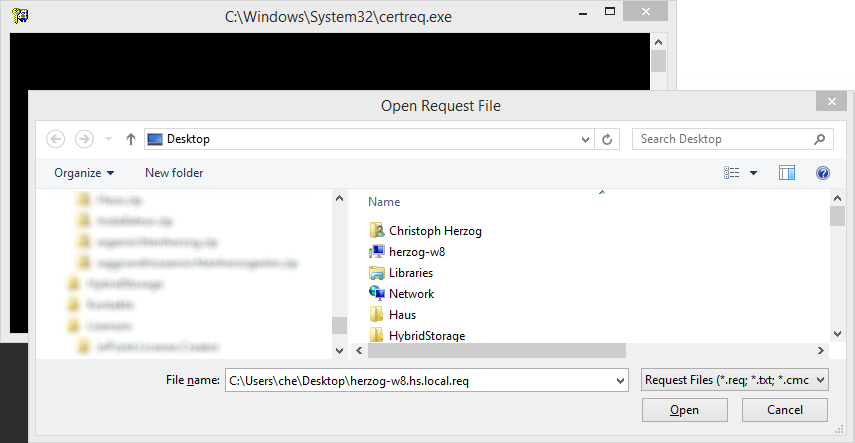
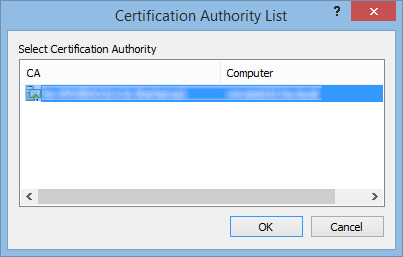
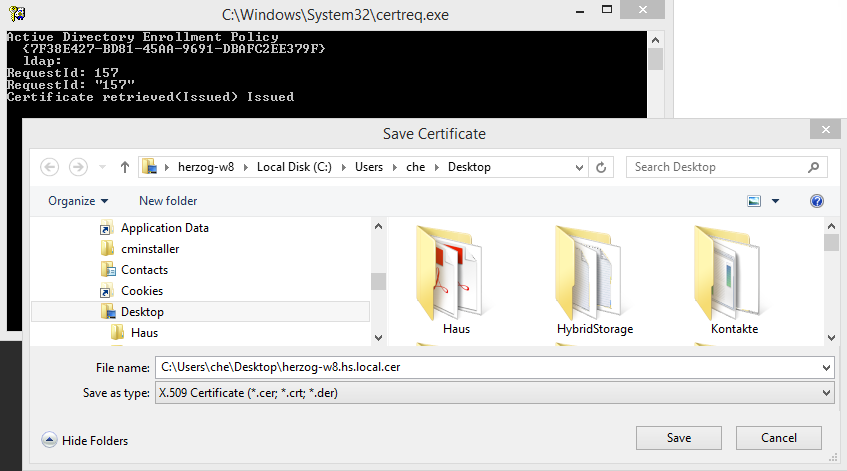
Create Certificate (from .req) using your local AD Web Portal
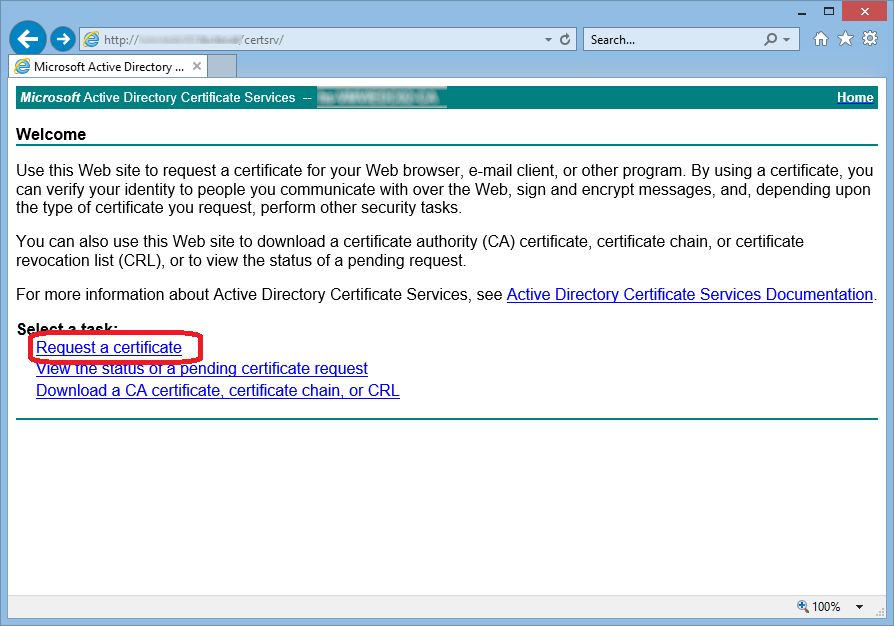
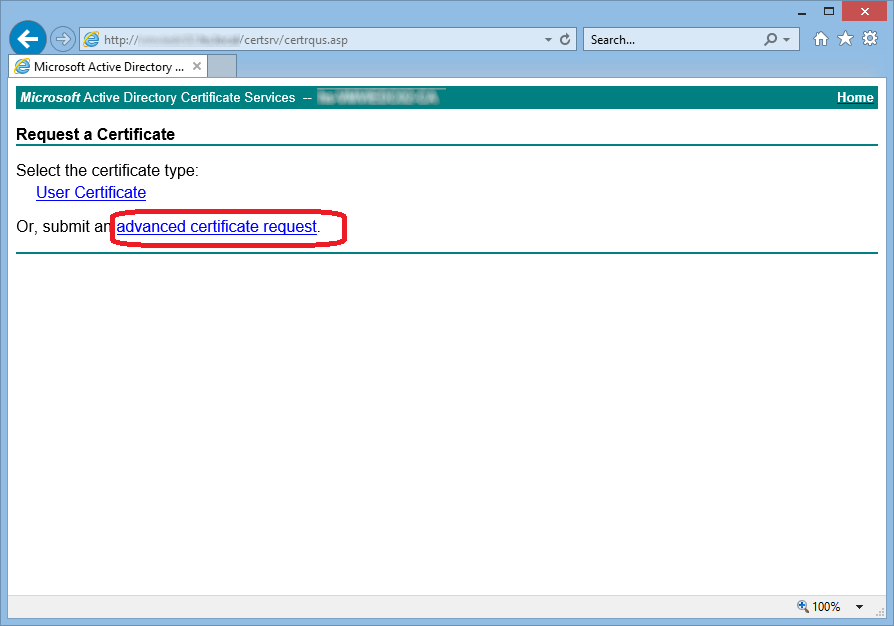
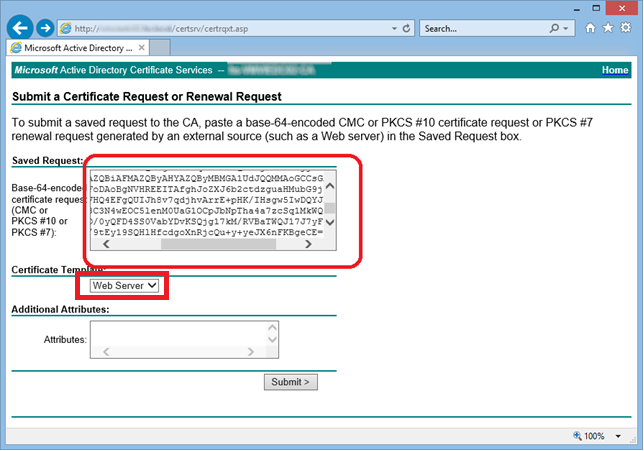
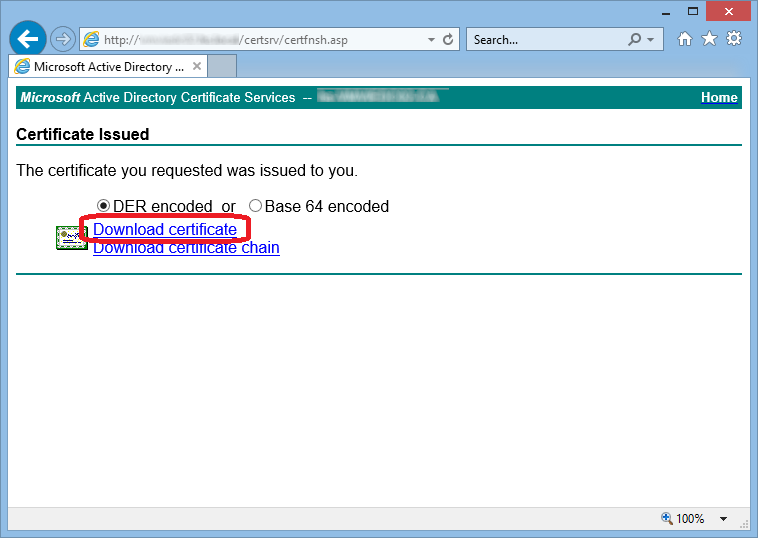
3. Install Certificate on local host
Copy the .cer file to your host,
Double-Click the file and then "Install Certificate".
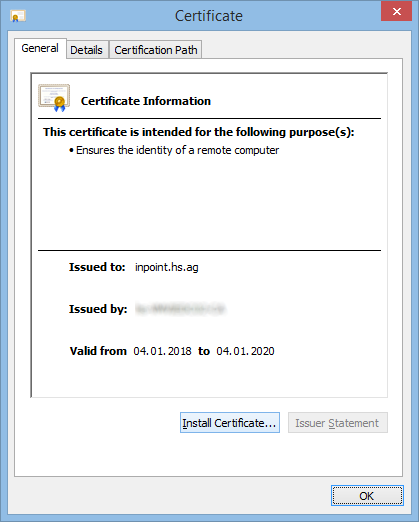
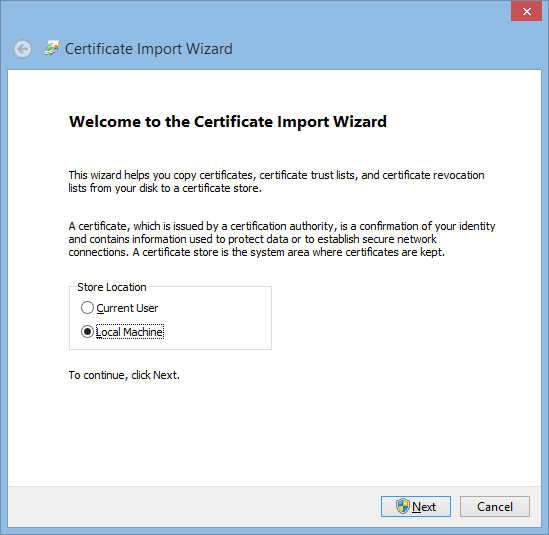
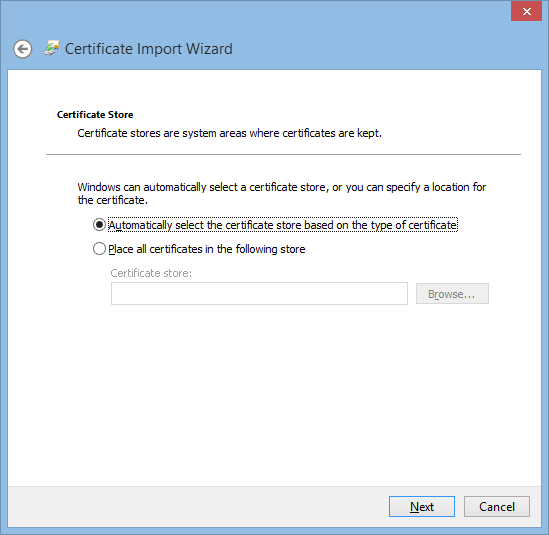
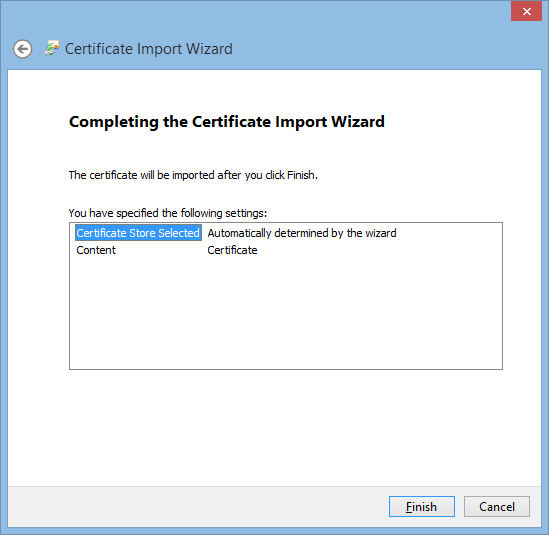
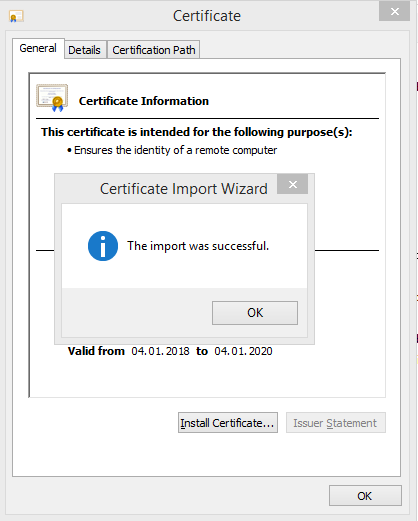
Your Certificate should then be visible in your local "Manage Computer Certificates".
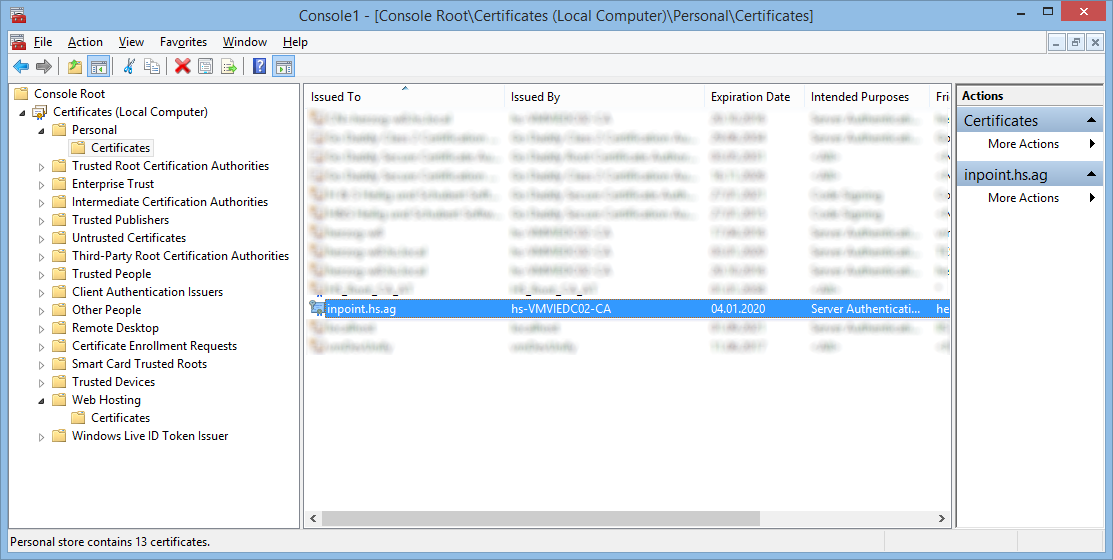
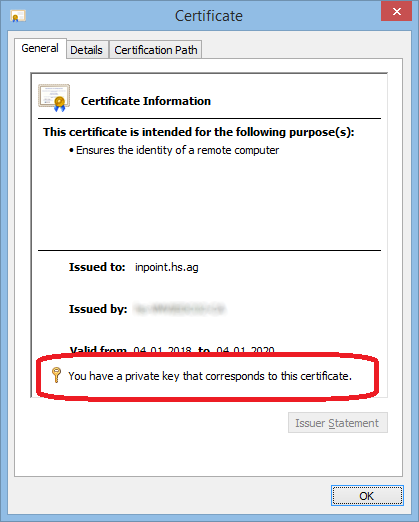
If you double-click it, it should show a Private key.