Geographic Locations
Overview
inPoint.Web supports Geographic locations (as WGS84 like GPS systems) as properties to any Folder and/or Document. It also includes extensive tools to query and render the locations on a Map.
Location types
Any inPoint Field can be defined as a Geographic field (of type Text), either as:
- a
Point: exact coordinates e.g. "latitude,longitude" (comma separated) - an
Area: a list of coordinates "latitude,longitude;latitude,longitude;latitude,longitude"... (note the maximum Text length of 2000 characters) - a
Raster: pixel reference on a raster image, e.g. "rasterid:x,y"
Configuration
The default Map Provider leaflet-osm (open-source), using maps from OpenStreetMap; that is fine for short-time testing, BUT:
PLEASE DO NOT USE FOR PRODUCTION USE
- instead talk to the customer to use MapBox or any other supported service.
Each Geo feature can be disabled or even use a different Map Provider.
For a full list of available options please see the Geo Configuration section.
Map Providers
The actual Maps are implemented as external providers called Map Providers (available under the /__map subfolder); inPoint.Web comes pre-packed with support for the following providers:
- Google Maps (fully implemented - required Google API Key)
- Leaflet (open-source fully implemented) using OpenStreetMaps
- Bing Maps (requires Bing API Key)
- OpenLayer (open-source with minimal implementation)
For Raster maps only one implementation is currently available:
- Leaflet-raster
SDK
Any custom provider can be added as long as it conforms to the following interface (i.e. must implement following methods):
setCenterMarker((location: Location));
showLocations(
  (locations: Array<MapLocationInfo>),
  (useCenterMarker: boolean),
  (callback: (location: Location) => void)
);
showMoreLocations((locations: Array<MapLocationInfo>));
searchRadius(
  (location: searchRadius),
  (radius: number),
  (callback: (location: Location) => void)
);
Location is a Javascript object defined as:
- latitude: number
- longitude: number
MapLocationInfo is a Javascript object defined as:
- latitude: number
- longitude: number
- label: string
- icon?: string
- area?: Array<Location>
- allowEdit?: boolean
Custom Marker
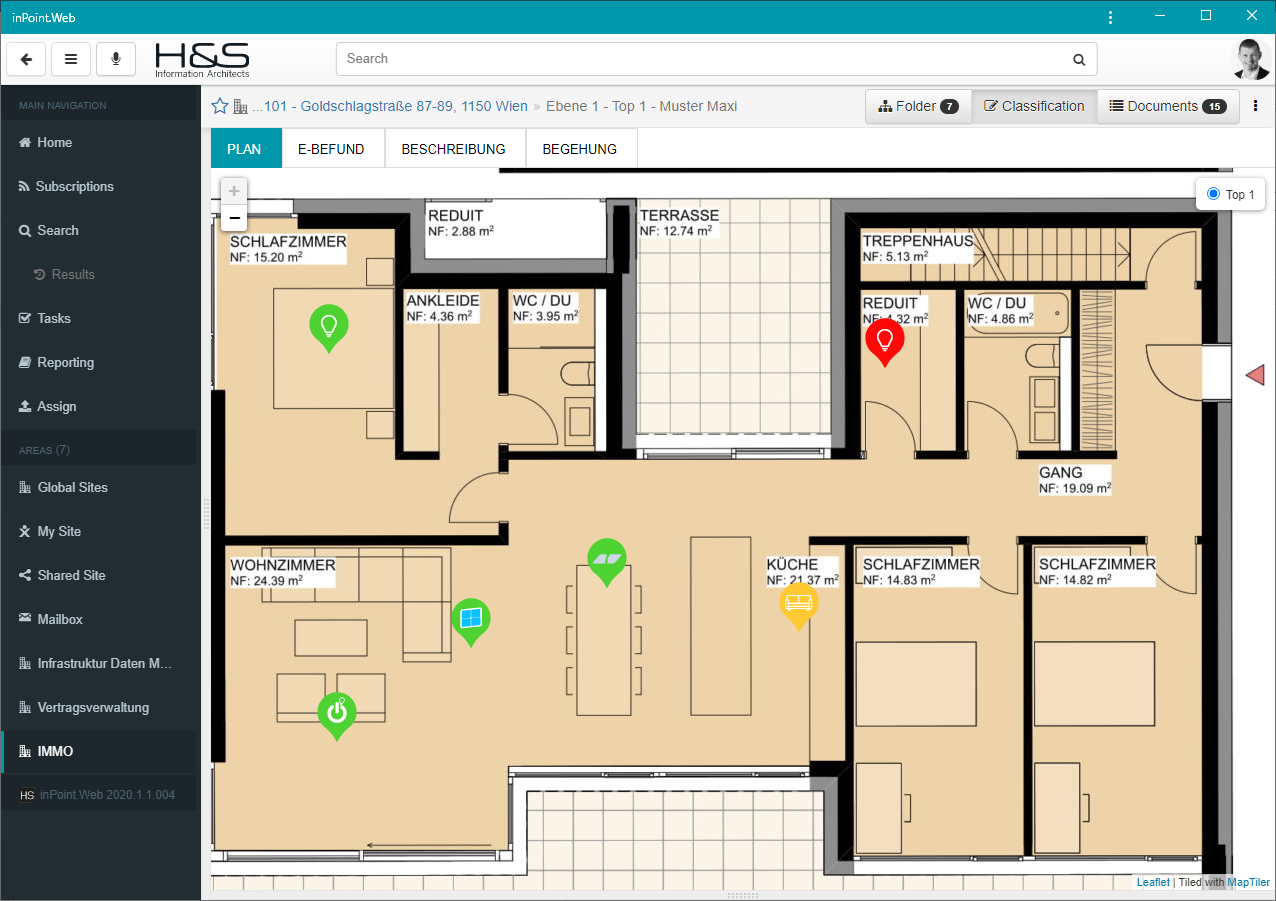
For all geographic points custom markers, based on other field values, can be configured in the defaults section.
Attention: Configuration was moved in 2020.1 from Geo > Map > Markers to Defaults > VisualRules, to allow folder based configurations.
Example:
"defaults": [{
    "visualRules": [{
      "targetNames": ["location"],
      "markerImage": "../lib/marker-{Status}.svg",
      "markerAnchor": [25, 63],
      "markerSize": [50, 78],
      "rules": [{
        "filters": [{ "name": "status", "value": "WIP" }],
        "markerImage": "../lib/wip-{Type}.png"
      }]
    }]
}]
Raster Maps
Configure Raster per folder
In order for the Raster maps to work, inPoint.Web must be notified of where to find the Raster layers mappings - you can do that by using the General/Defaults/map configuration (e.g. for a specific FormatId) and setting the map options.
Sample:
{
  "formatIds": [112136],

  "map": {
    "name": "leaflet-raster",
    "isRaster": true,
    "rasterMapIdSelector": "{itemUri}",
    "onClick": {
      "confirm": false,
      "locationTargetFieldName": "GEORASTER_FIELD",
      "commandAction": {
        "name": "itemFlows",
        "props": {
          "direction": "in"
        }
      }
    }
  }
}
Manually install converter
We use GDAL for the Raster conversion and a customized script for the tiles split.
You can find a GDAL.ZIP file in the installation directory, unzip it to your C:\Program Files\ and it should look like this:
C:\Program Files\GDALC:\Program Files\GDAL2TILES
NOTE: this is currently a manual step - we are evaluating options on integrating this directly into inPoint.Web.
appsettings.rastermaps.json
File holding all raster maps configurations (will be automatically managed but can also be manually adjusted).
raster_manage CommandAction
Add this CommandAction to whichever folder you wish to configure it's Raster Layers; by default only Admins will see/be able to use it.
{
    "id": "rasterManage",
    "name": "Manage Raster Layers",
    "shouldBeVisible": [ "isFolder", "isAdmin" ],
    "commandAction": {
        "name": "raster_manage"
    }
},