Archiving (Assign)
Overview
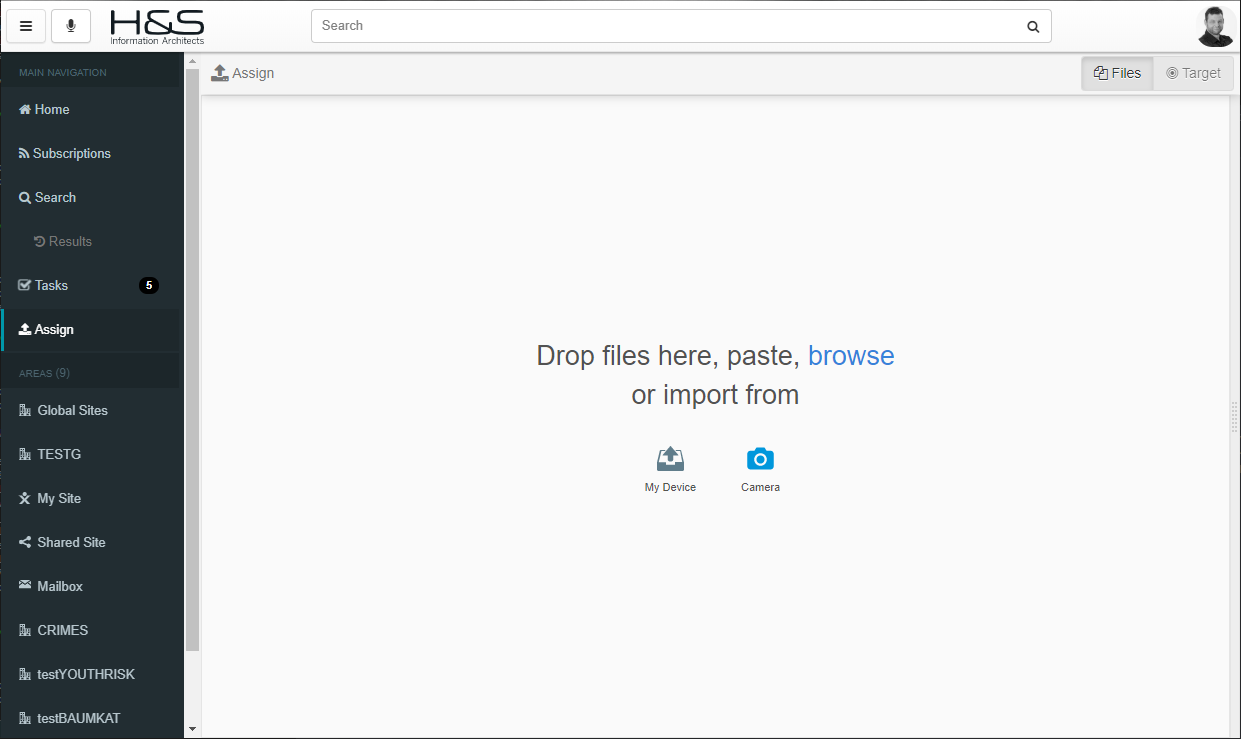
Adding files can be triggered in multiple ways:
- by clicking the
Assignin the Sidebar- in this case inPoint.Web will guide the user to select the target folder
- by dragging files from your Desktop (or any other Windows application) and dropping on:
- the
Assignin the Sidebar - within an open
Folder Classification - within an existing
Document List - within the
DocPreview(toAssigna new Version)
- the
Batch Upload
You can manually add a single file or also multiple files at once. All files added (pending) are considered one "batch":
- they will all be assigned to the same chosen target folder
- they will all receive the same Classification values (like "Apply to All" in the inPoint.Client)
- they will all receive the first filename unless you type a different name
- the name will automatically be appended with a counter to avoid duplicates, e.g. xxx (1), xxx (2), ...
Archive Targets
inPoint.Web presents a list of (pre-configured) targets to guide the user in choosing a target for the assignment.
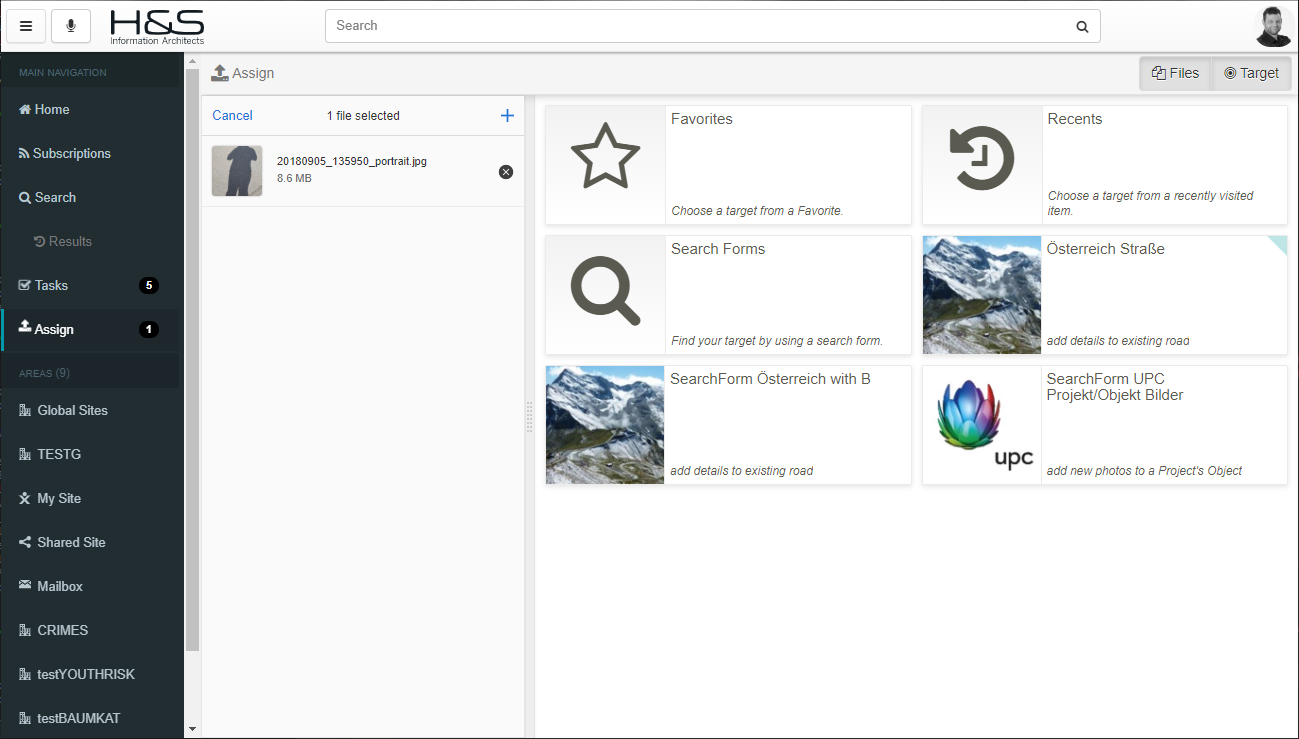
Per default the User's Favorites, Recents and available Search Forms are displayed. You can add following items to this list:
- any Search Form
- any Search Result
- any existing Folder
Custom filters
Any pre-defined Search Form can also be executed with custom filter values, which can be:
- either pre-defined in the ArchiveTarget definition
- "
{geolocation}" to retrieve the user's current location
Configuration
Please see the Configuration to learn how to customize this list.
Photos with Geo location
Some images (depending on your Camera settings) store the GPS Location where the Photo was taken; this is stored within the so called EXIF Metadata.
inPoint.Web will analyse this metadata (in the Browser, before the upload) and fill-in any GeoPoint Fields available in the target Classification form.
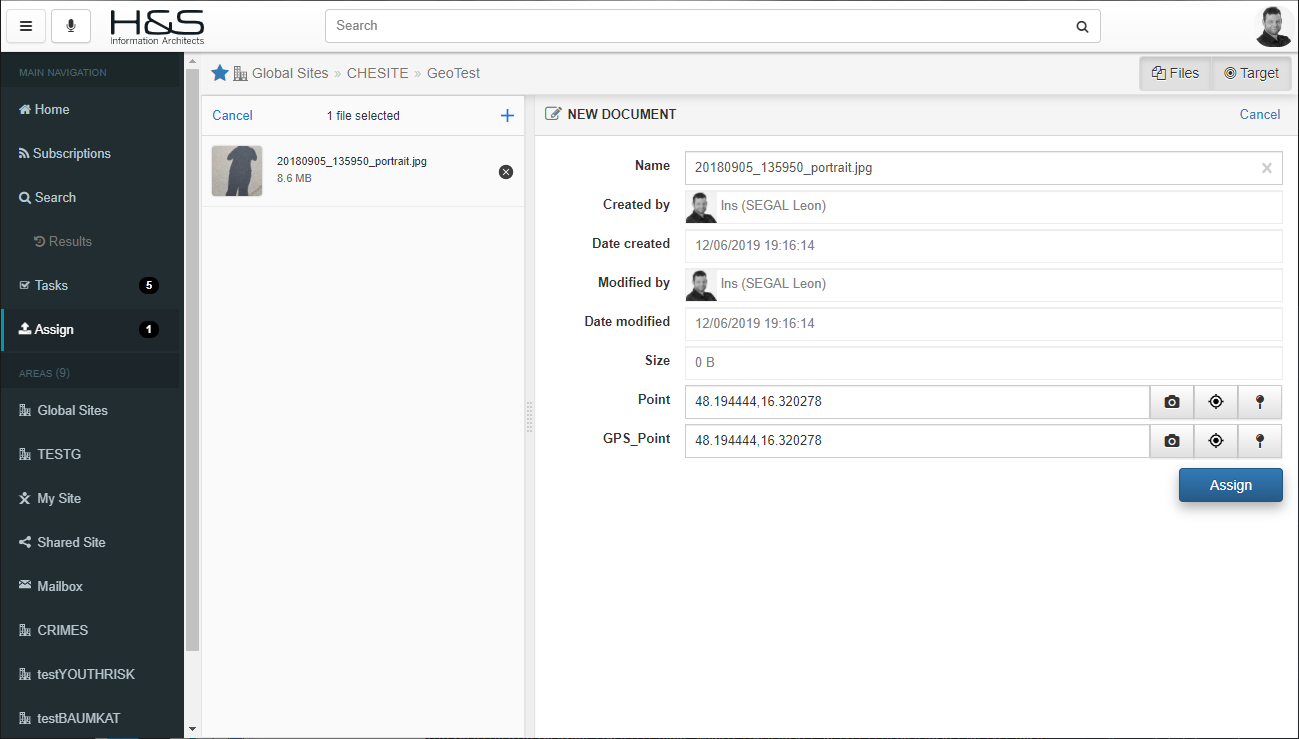
If there is more than one Photo in the current Batch upload, a Triangulation will take place between all the available Photos' locations.
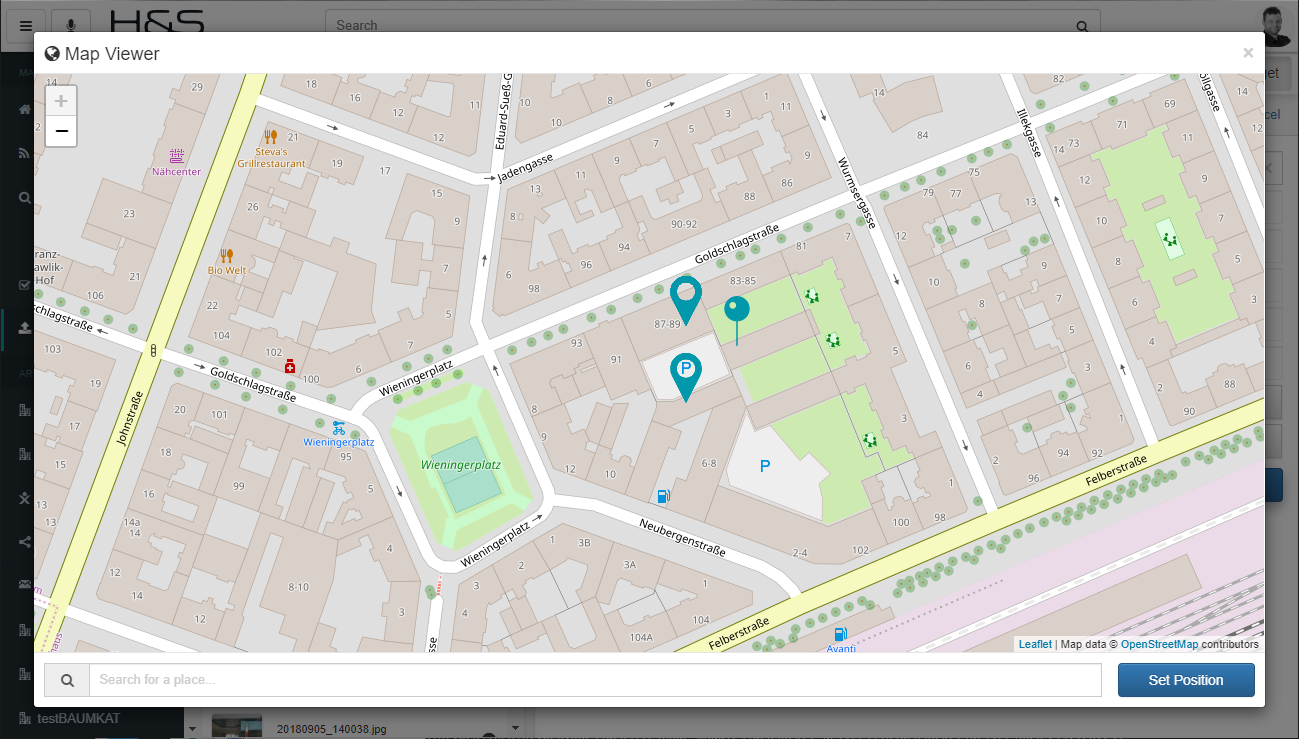
You can still manually set the Location, either by searching for a Place or directly on the Map: