Item Views
Overview
An Item Action is usually displayed as a "one-liner" - an optional icon, the link itself (which starts the configured CommandAction) and an optional description. You can also change the default rendering by specifying a custom ItemView.
Definition
An ItemView renders a pre-defined view, that might contain one or more Command Actions. Like an Item Action it can target specific views, can define its shouldBeVisible conditions and be targeted by its unique id.
id
This is used to uniquely identify a Item View
category
You can target all available categories for ItemActions
views
You can target all available views for Item Actions
documentDocument Action PaneldocmodalDocModal Action PanelflatFolder Action PanelfolderFolder Action PanelhomeHome Card Action PanelmailboxFolder Action PanelminiflatFolder Action PanelnewsNews Feed Action PanelsearchSearch Action PanelsearchResultSearch Result Action Panel
shouldBeVisible
You can target all available shouldBeVisible conditions for ItemActions
commandAction
Optional default commandAction for the defined ItemView.
Note: To persist the props to the Item View, provide an empty object {}.
view
Specifies a custom view for the ActionPanel, it will contain name and an optional number of custom props, that are defined by the ItemView itsself.
name*
Targets the custom view by its unique identifier name
Example
See Configuration for a complete list of examples.
Reference
Following pre-defined ItemView names are currently available:
itemView_activityList
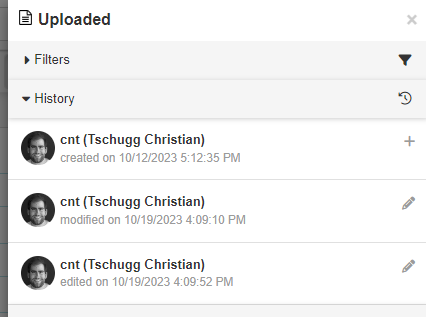
This will show a list of activities related to the current item (Folder or Document). Basically the same as the Activities view in the Document viewer. You can configure which activities to display:
- history entries (created, modified, locked)
- notes entries
- possibility to add a new note
- document retention info
Current limitations:
- folders currently have only notes (no history entries)
- nothing will happen by clicking on an entry
See Configuration for setting this up.
itemView_docList
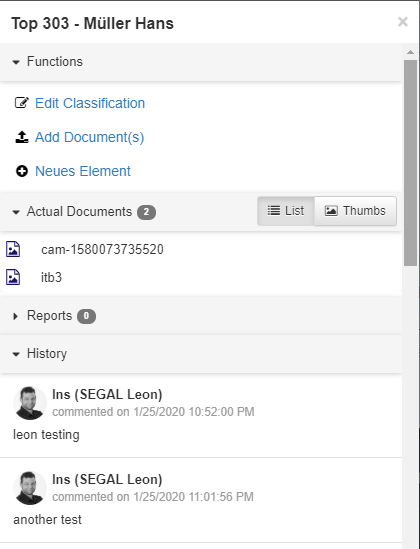
This will show a simple documents list (showing documents from the current folder), with the possibility to pre-define which Sorting / Filtering & ViewMode (List or Thumbnails) to use (user cannot change those). Use can switch between List mode and a Thumbnails Gallery.
Current limitations:
- no FilterBar visible - so the user cannot change the pre-defined Sorting / Filtering
- no paging - only first page (usually 200 documents) displayed
See Configuration for setting this up.
itemView_filter
This will show possible filter actions you can take on a specific document list column.
Possible actions based on the columns value type:
- Filter by value
- Add value to filters
- Remove filers
- Reset filters
Current limitations:
- Only available on documen lists
- View mode must be
Grid
See Configuration for setting this up.
itemView_multiSelection
This will render the multi selection control bucket as an Item View with the following actions:
- Enable multi selection
- Disable multi selection
- Invert selection
- Select all
- Deselect all
See Configuration for setting this up.
itemView_reminder
This will show a list of pending reminders and the possibility to add a new reminder. You can edit or delete existing reminders.
See Configuration for setting this up.
itemView_workflow
This will show a list of pending workflows as well as the possibility to start a new workflow or show a workflow report - basically anything you configured in the wf category.
Current limitations:
- only inPoint.Workflow pending workflows will be displayed
See Configuration for setting this up.