Quick Actions
Overview
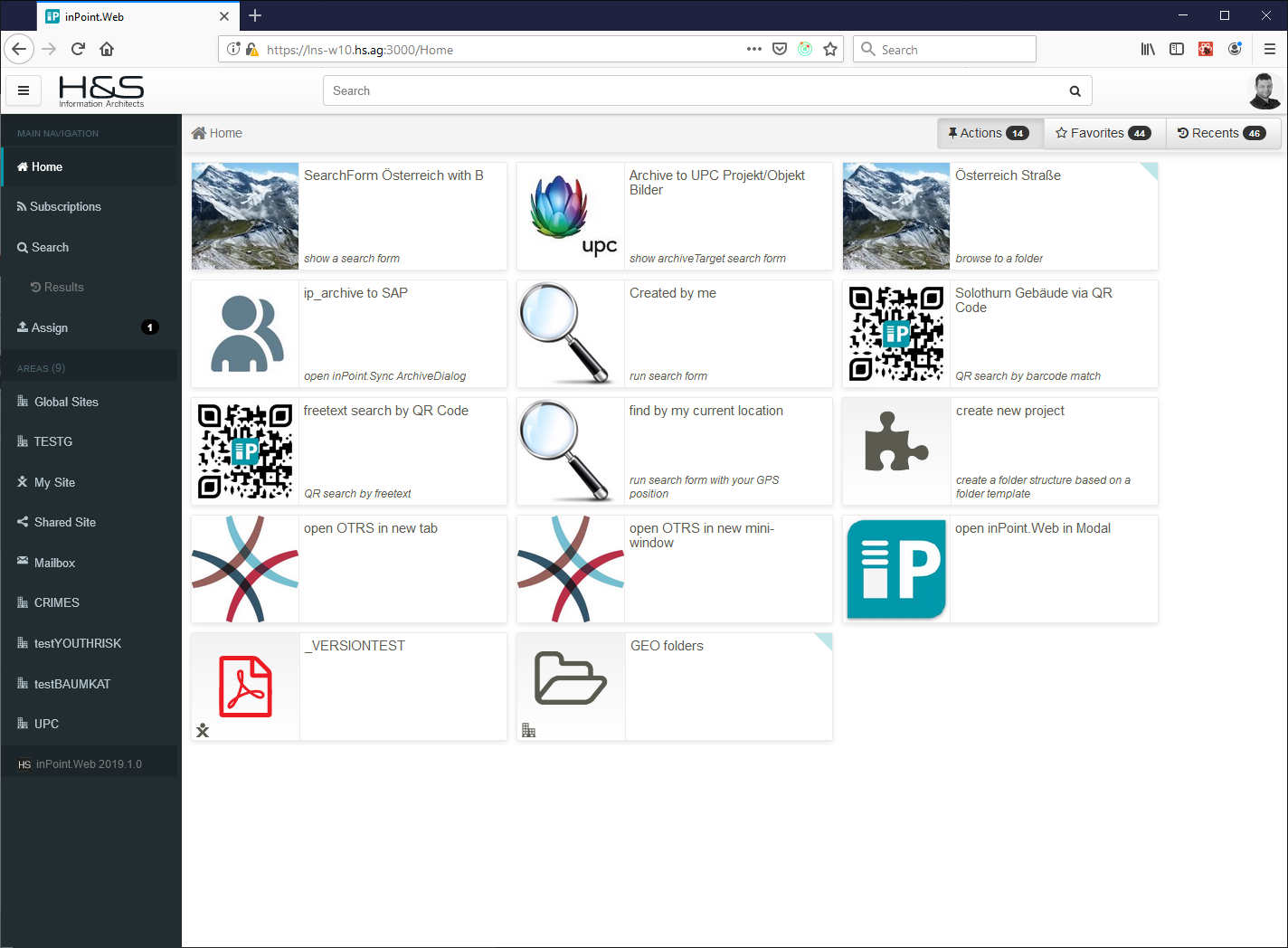
Those are shown in the Home view as Cards in it's own toggle (like Favorites, Recents and Tasks).
You can think of these as "Admin pre-defined Favorites", hypercharged to launch any Command Action that can be customized to the Customer's specific needs.
NOTE: disabled per default, a featureFlag must be set for this to be visible (see Feature flags).
Some currently possible actions include (but are not limited to):
- Direct access to a Folder / Document
- Direct access to a Search Form
- Direct access to Search Results
- Direct access to an ArchiveTarget's Search Form
- Any Command Action (see below for some examples)
Each action can also be limited to a list of inPoint Groups – only users belonging to any of the specified group ids will actually see the action.
Available Actions
Browse a Folder
Navigate away from the Home view and browse the specified folder.
Note: if the Folder's Classification includes an Image field it will automatically be displayed here.
See Configuration for setting this up.
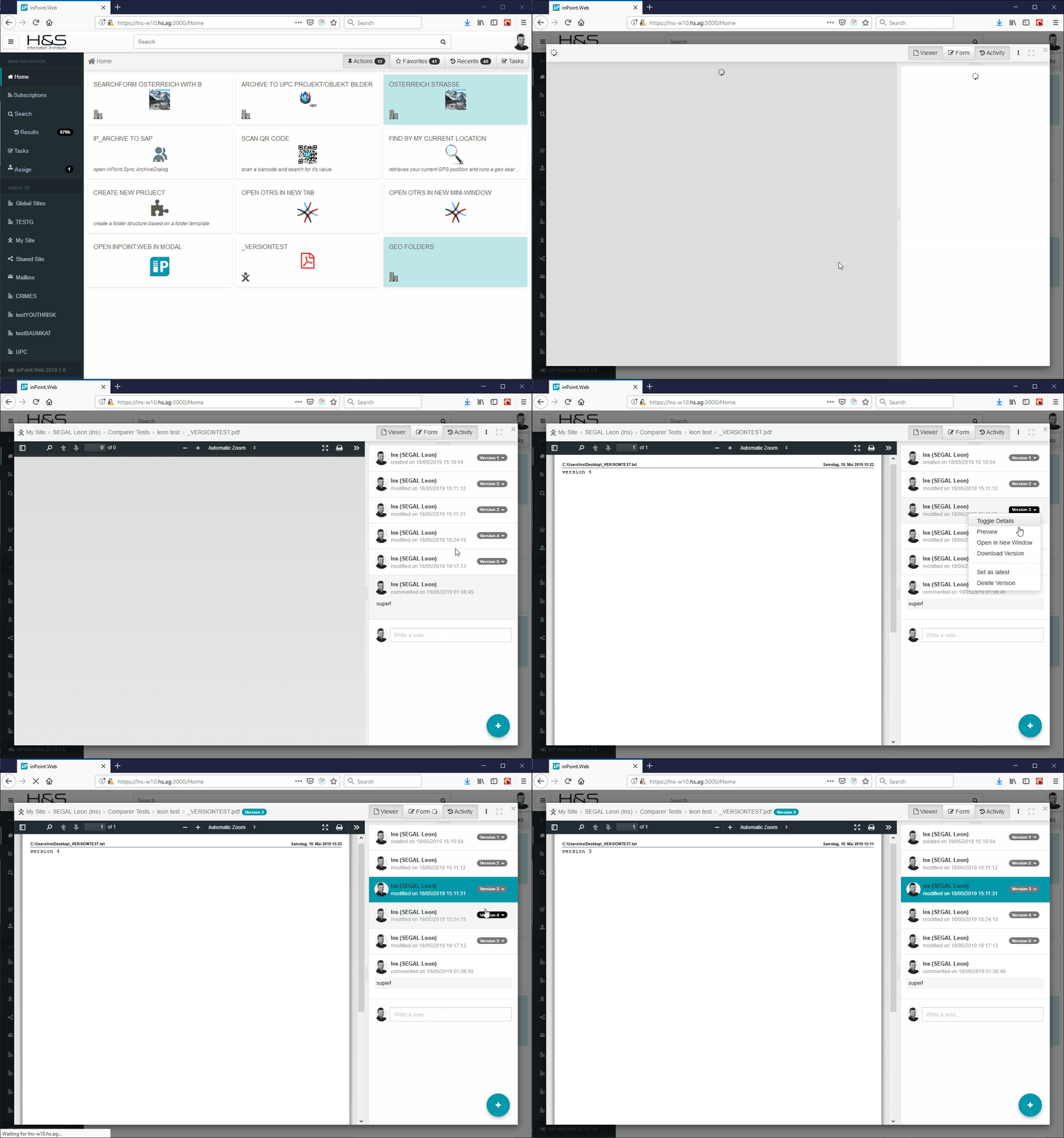
Preview a Document
Open the DocViewer Modal popup to a pre-defined existing Document.
See Configuration for setting this up.
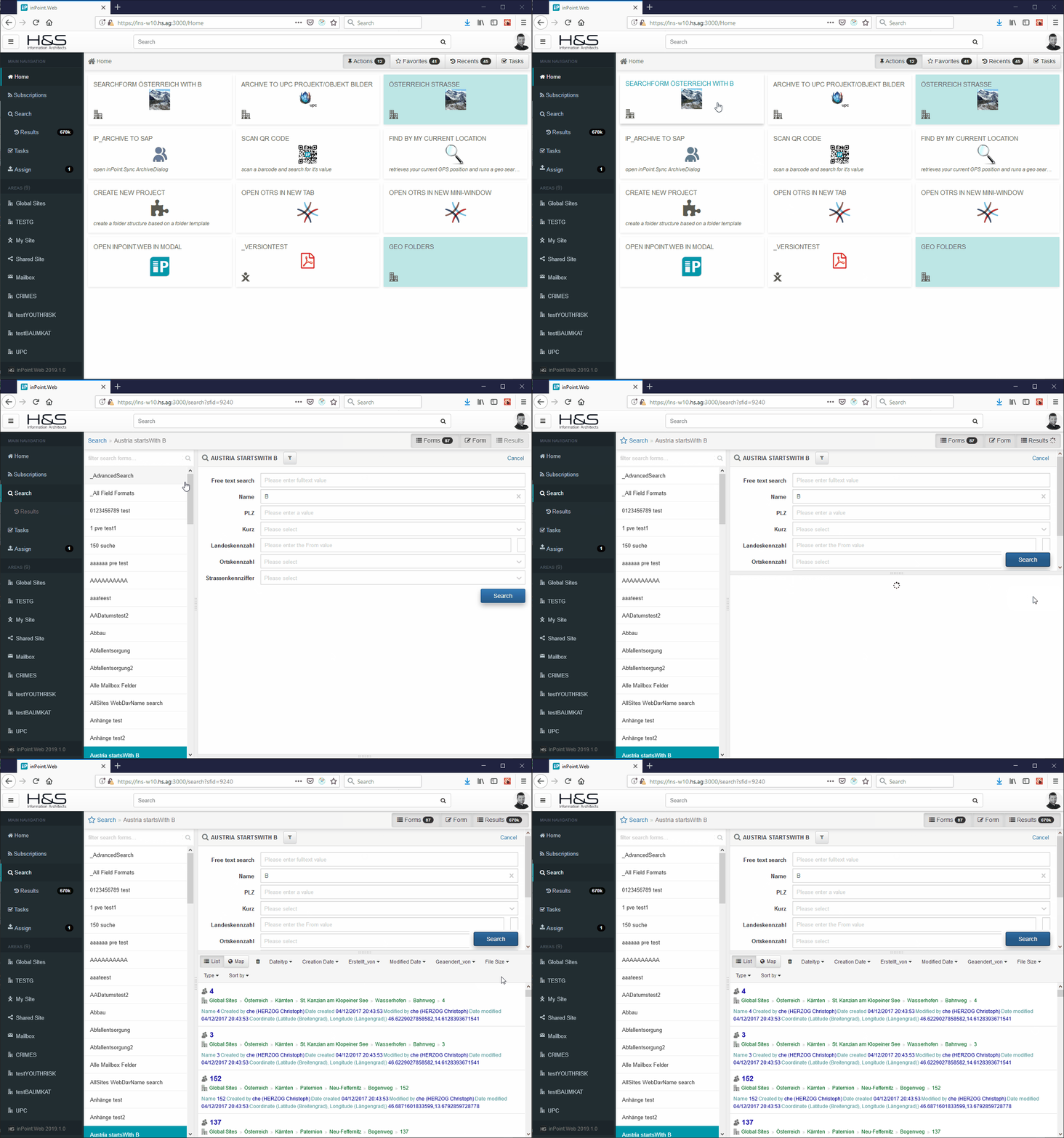
Show SearchForm
Navigate away from the Home view and show the specified Search form.
See Configuration for setting this up.
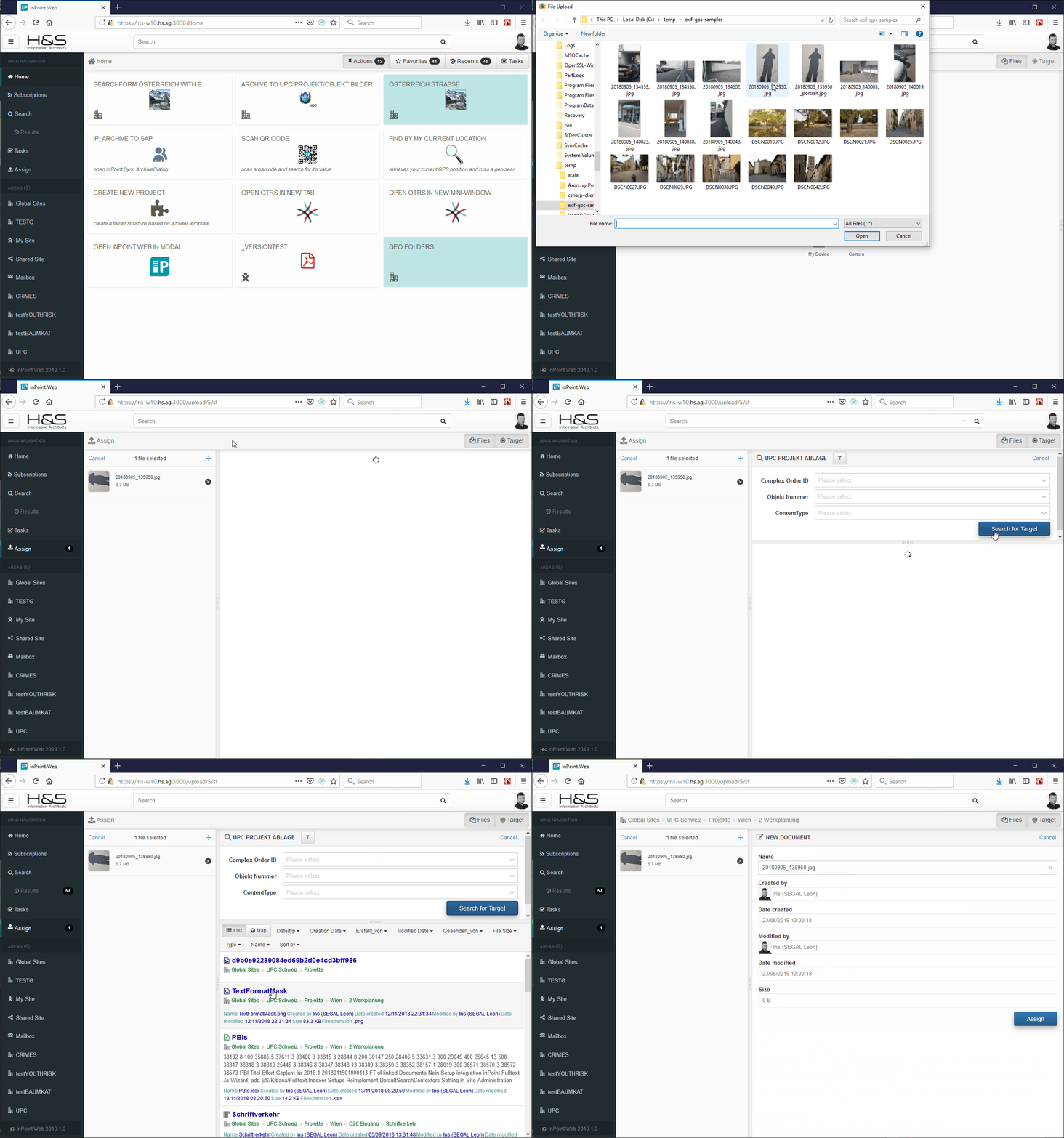
Show ArchiveTarget SearchForm
Navigate away from the Home view asking the user to Assign files and automatically show the specified Search form to find the target.
See Configuration for setting this up.
inPoint.Sync ArchiveDialog
Launch inPoint.Sync with the Archive command.
See Configuration for setting this up.
Run SearchForm
User will immediately land at the Search Results view without having to click on Search nor will he be able to go back or change any Search form values.
You can also specify the ViewMode (List, Grid or Map) and whether the Filterbar should at all be visible.
See Configuration for setting this up.
Run Geo SearchForm with current GPS Position
- retrieves the current GPS location
- fills the specified Search form and the specified GeoPoint field
- runs the search
- if the SearchForm has the setting
AutoBrowseToItemenabled and only one result found it will immediately browse to that item - otherwise it will show all the Search Results
You can also specify the ViewMode (List, Grid or Map) and whether the Filterbar should at all be visible.
See Configuration for setting this up.
Run Barcode SearchForm
- asks the user to scan a Barcode (or provides an Upload button if no Camera detected)
- identifies the barcode (if required retrieves parts of it by using the specified Regular Expression) and fills in the specified field in the specified Search form
- runs the search
- if the SearchForm has the setting
AutoBrowseToItemenabled and only one result found it will immediately browse to that item - otherwise it will show all the Search Results
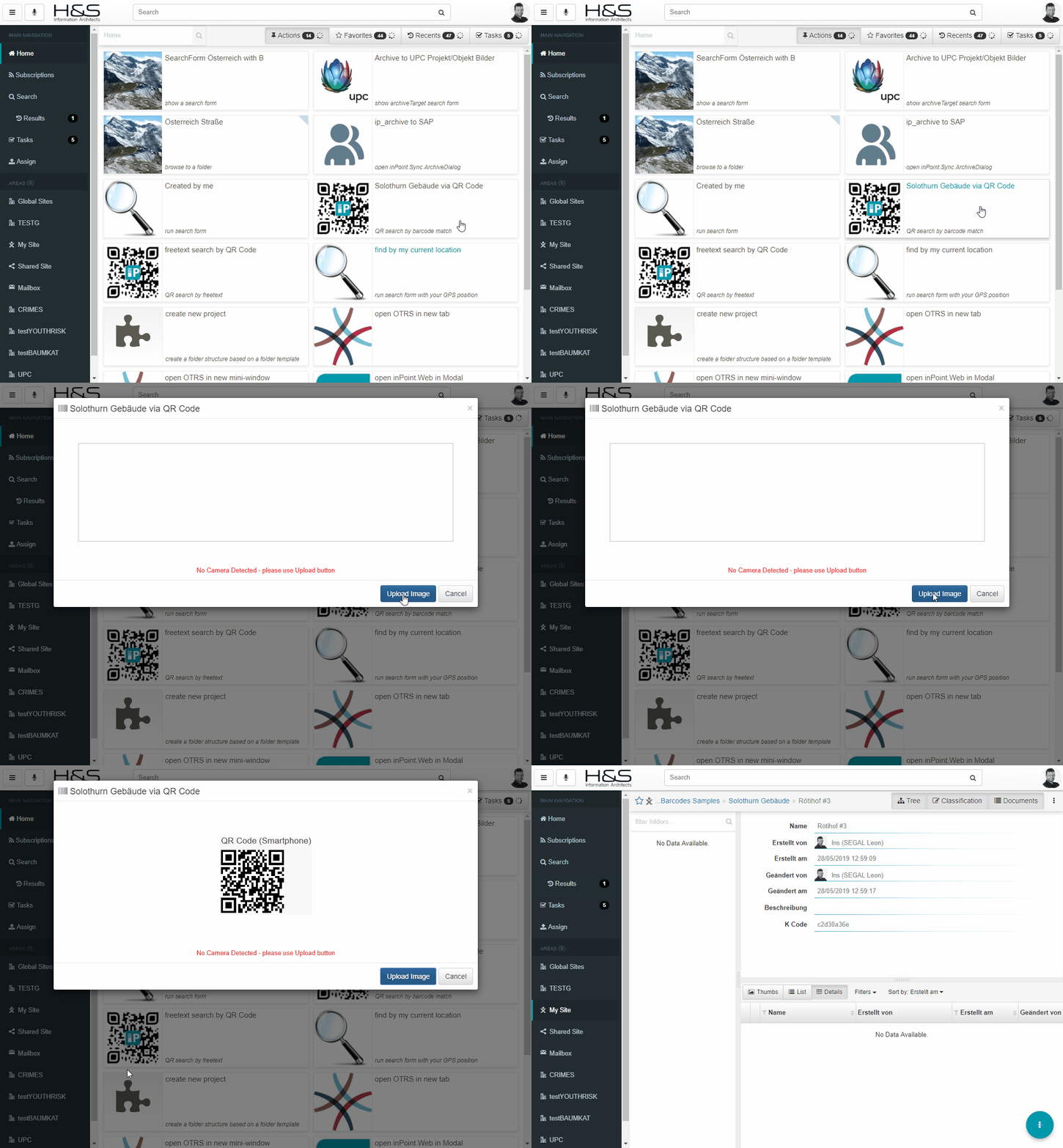
NOTE: currently ONLY QR CODES are supported! Normal barcodes (EAN-13, etc…) might be added in the future
NOTE: the scanning and recognition occurs at the browser (nothing is sent to the server) – not as good and might not always recognize everything (needs good lighting, zooming in, etc…)
You can also specify the ViewMode (List, Grid or Map) and whether the Filterbar should at all be visible.
See Configuration for setting this up.
Create Folder from FolderTemplate
Will ask the User for the new Folder name, immediately create the Folder structure at the specified target folder with the specified Template and browse to it once completed.
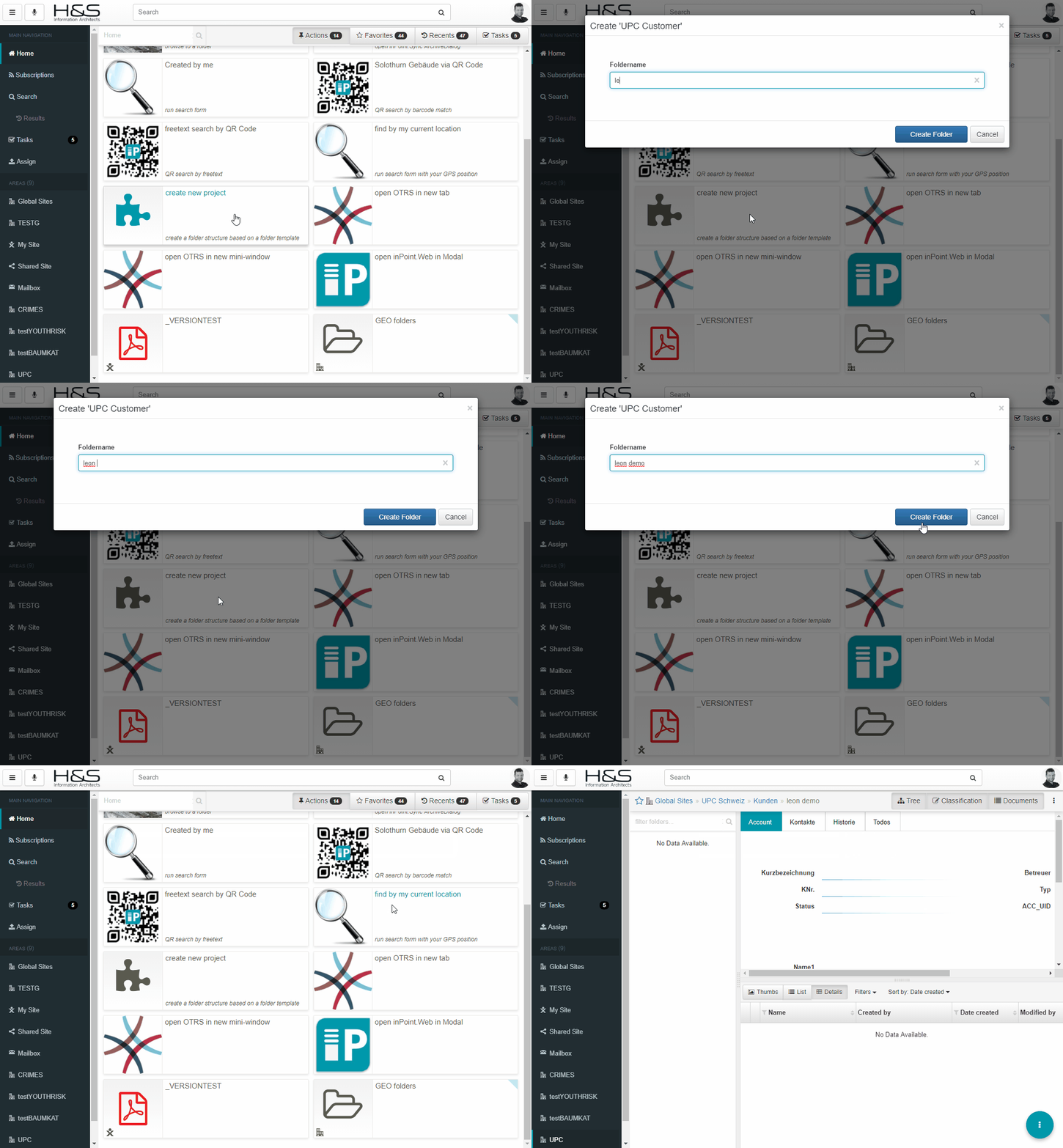
See Configuration for setting this up.
Open any Link
Open any external link - either in a new Browser Tab, Browser Window or as a Modal popup within inPoint.Web.
See Configuration for setting this up.