✨ What's New
This list includes all new major features implemented.
Recent searches-list formatting
Internal: see OTRS [2017030801000143]
Internal: see TFS [#39439]
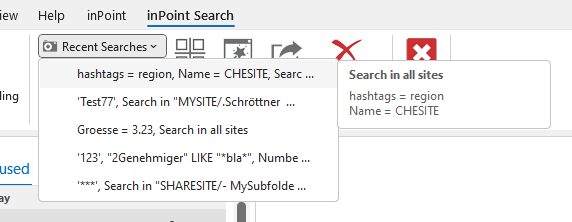
The formatting of the recent searches used by the Ribbon-Buttons [Recent Searches] and [Favorites] and for the Recent-Searches panel in inPoint-Search have been improved:
- The Labels should now be more human-readable
- The ToolTips are showing the Details more human-readable
Show inPoint username and server version
Internal: see OTRS [2018012801000018]
Internal: see OTRS [2018020501000014]
Internal: see TFS [#40045]
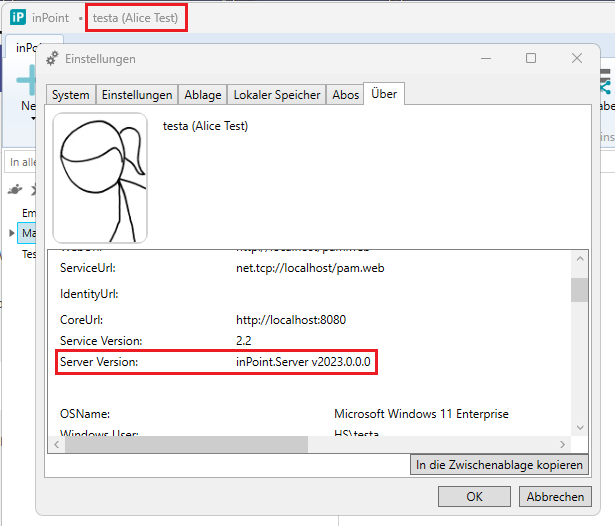
inPoint.Standalone shows now the name of the current inPoint-User in the Window-Title.
Also the version of the currently running server is shown in the About-Tab of the Settings Window.
Folder templates improvements
Internal: see TFS [#51355]
Previously all folder templates where stored in a single BLOB in the database. So when there are many and/or big templates the managing of the templates slows down.
Now, the folder templates are stored in a separate table and can be retrieved/updated individually. Also the serialization of the content (the saved folders) is executed only when a folder template was created or used to create a folder structure.
The Migration of the old BLOB storage into the new table storage is done when the client accesses the templates. This also might take longer. So it's recommended that after an upgrade a manager starts inPoint.Standalone, opens the Manage-Template window and waits until the window is shown. Then the migration was done.
For details about this process see the documentation: https://serviceportal.hs.ag/docs/inPoint.Enterprise/docs/2023.3.1/management-foldertemplates
Allow setting AlternativeMirrorForLongPathNames to be specified at server side
Internal: see OTRS [2020060901000095]
Internal: see TFS [#53058]
The setting AlternativeMirrorForLongPathNames was migrated into a cascading setting, stored at server side.
The setting in the local inPoint.Config is still there, but only used for caching the server value for offline usages.
Old: The value was true / false
New: The value is true / false / enabled / disabled
- true: Value from an old client -> value will be saved on server and changed into enabled
- false: Value from an old client -> loads value from the server and changes into enabled / disabled
- enabled: At last connect, the server reported AlternativeMirrorForLongPathNames = true
- disabled: At last connect, the server reported AlternativeMirrorForLongPathNames = false
Specify notification users when sharing
Internal: see OTRS [2020092501000077]
Internal: see TFS [#53840]
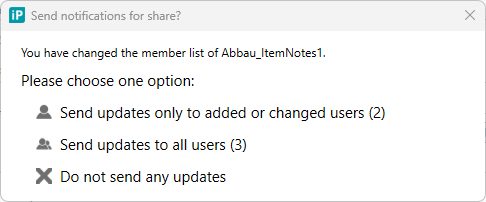
When updating a share you can now specify which users/groups should be notified:
Send updates only to added or changed users (2)
- sends the notification email to 2 users (or groups) which where added or changed
Send updates to all users (3)
- send the notification email to all (=3) users (or groups)
- this is the behavior of previous versions
Do not send any updates
- just update the share but do not send any notification email
ExtraAttributes: Fix of input validations for required fields
Internal: see OTRS [2020111801000086]
Internal: see TFS [#54788]
The highlighting of required fields have been improved. Sometimes no red border where painted and in some cases the borders where incorrectly rendered. This has been improved: Now always a single red border on validation errors should be rendered.
The radio button groups (List or Radio Buttons, List of Horizontal Radio Buttons and List of Vertical Radio Buttons) still have a red border which is not fully rendered (clipped on right side).
Search Default Value for Operator "Choose from existing"
Internal: see OTRS [2022070801000055]
Internal: see TFS [#54883]
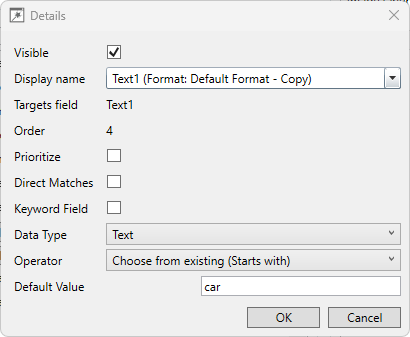
For the search value operator "Choose from existing"
you can now also define a default value like for other operators.
inPoint.Wizard: inPoint.Core setup is included
Internal: see TFS [#56350]
Searchforms label for "Starts with" and "Contains"
Internal: see OTRS [2021080801000046]
Internal: see TFS [#58162]
The operators "Starts with" and "Contains" are now shown.

ExtraAttributes: Fields and data sources can be re-ordered
Internal: see OTRS [2021082501000041]
Internal: see TFS [#58305]
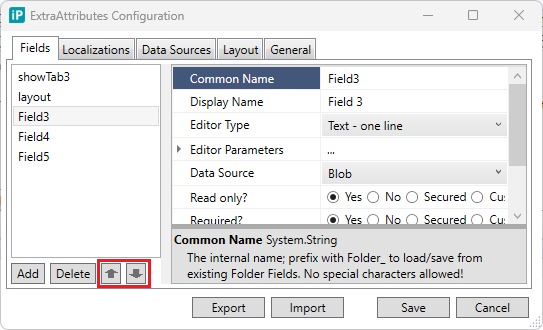
Improvement for fields:
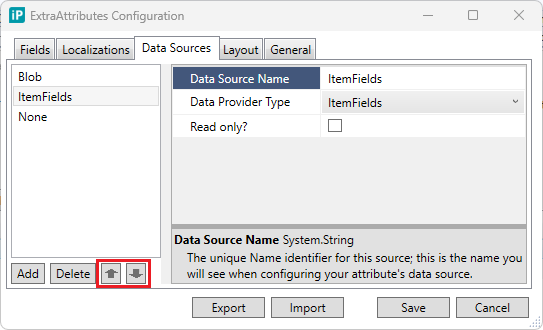
The ordering of the fields can be now changed by clicking the up- and down-buttons. Also while the focus is in the ListBox with the fields you can enter some characters to move the selection to the next field starting with this characters.
You can now also jump to the next field by typing the first character(s) of the field name.
Improvement for data sources:
There are now also the same up-down buttons to change the ordering.
Moving folders with hidden sub folders and target level>10
Internal: see OTRS [2021090601000075]
Internal: see TFS [#58418]
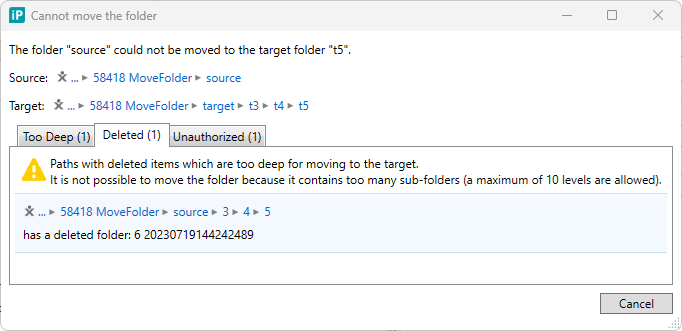
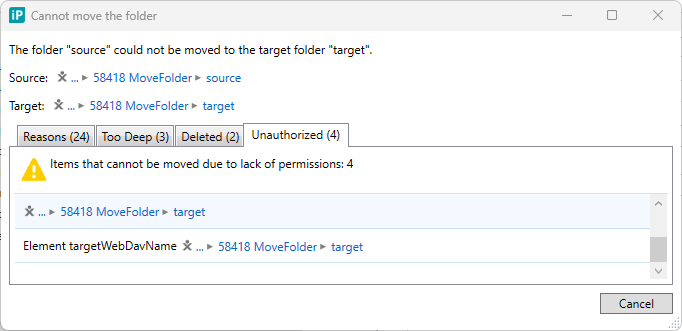
When you move a folder and the move was not possible previously just a message box was shown.
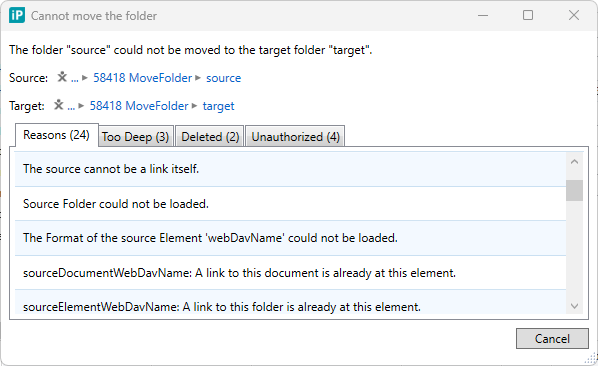
Now a popup-window with more details is shown.
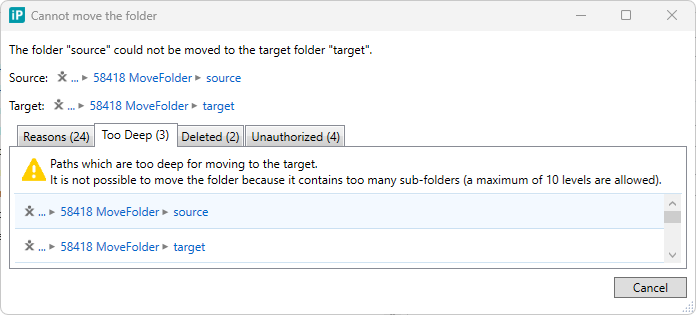
The error conditions are divided into four parts:
Reasons: Some general conditions which where not met to move the source to the target. Like the Target-Element-Type or when trying to move a folder to another site...
Too Deep: When the source folder has children which would be too deep after moving to the target, then this folders are listed here. inPoint allows only up to 10 levels.
Deleted: When the source folder has children and which are already deleted and would be too deep after moving to the target this elements are listed here. inPoint allows only up to 10 levels and since inPoint (currently) cannot navigate to a folder in the Recycle-Bin this folders are listed in this separate tab.
Unauthorized: When the source folder has children which are not allowed to read or delete. In this case the folder/document is listed here and if not allowed the first parent folder is listed which has at least read access.
Currently this popup is a modal window, so you cannot continue without closing it. But you can click on the breadcrumbs to select a folder in the client.
Exporting a search result as PST or CSV does not longer limit to 10,000 items
Internal: see TFS [#59041]
Its is now possible to export a Search-Result into a PST or as CSV with more than 10.000 items.
Authorize multiple users as viewer users for the mailbox/public folders
Internal: see OTRS [2022040801000051]
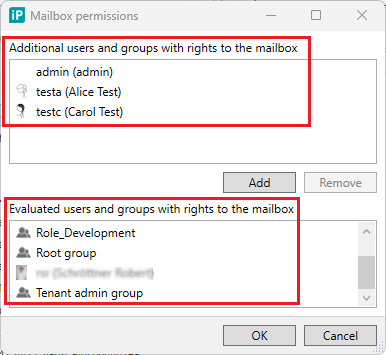
Additional mailbox permissions
Internal: see TFS [#61506]
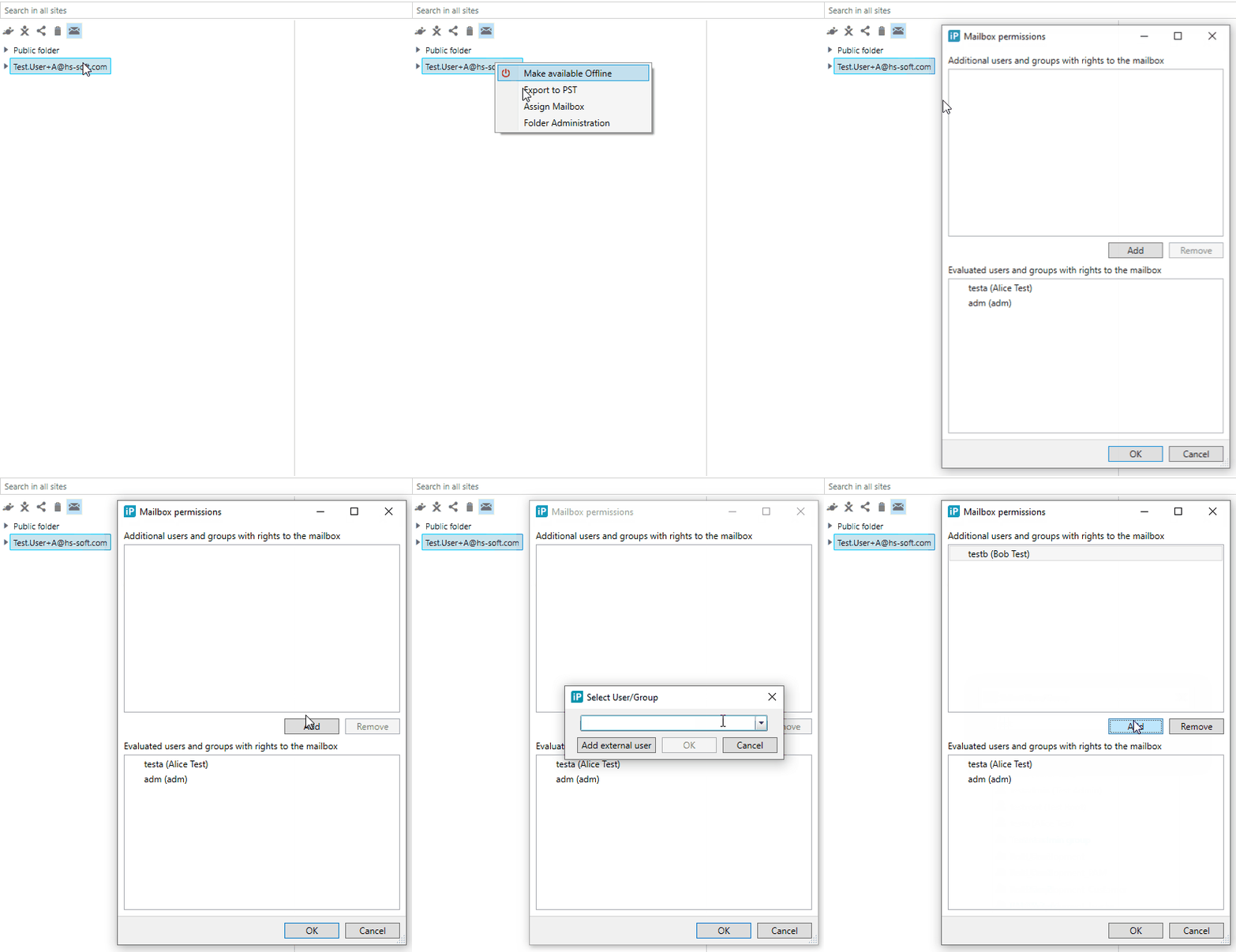
In the "Mailbox permissions" dialog it's possible to define additional user(s)/group(s) to have access to the mailbox.
The additional rights will be applied only after evaluating the mailbox permissions received from conentAccess by running the Mailbox synchronization job. It's required to run the provisioning in "Force full crawl" mode.
Mail viewer user with access to old e-mails archived with MAM
Internal: see TFS [#61506]
It's required to define the mail viewer user in the database for inPoint using the custom 001_00_MailPredefinedSecurity.ps1 PowerShell script, if it has been set in the web.config under the InpointMailViewerUser key.
See the updated manual for more details.
eDiscovery user(s) with access to all mailboxes/public folders
Internal: see TFS [#61506]
With the "Multi User Login" feature (allows to implement a four-eyes principle) it is possible to define user(s), who can access e-mails in all mailboxes/public folders for the revision.
These users are special users, that can be logged in with other users from specified groups.
Defining the eDiscovery user(s) for inPoint is possible by using the custom 001_00_MailPredefinedSecurity.ps1 PowerShell script.
See the updated manual for more details.
Exporting a folder as PST or CSV does not longer limit to 10,000 items
Internal: see TFS [#65379]
When exporting a Folder via [Export Files] you can now also export folders with more than 10.000 direct child folders and more than 10.000 documents in one folder.
New help.template in inPoint.Admin
Internal: see TFS [#65734]
The behavior of the help.template setting in inPoint.Admin.Server.exe.config have been changed:
- To use the default help pages you should keep (or set) this value to empty, or comment it out.
Then the inPoint.Admin.Client uses the default default template: https://serviceportal.hs.ag/docs/inPoint.Enterprise/docs/{version}/{helpId}. - To hide the help buttons and links in inPoint.Admin.Client enter any non-URL text like DISABLED:
<add key="help.template" value="DISABLED" /> - To use an alternate location of the help pages you can set another value like http://customer.org/help/{helpId}.
<add key="help.template" value="http://customer.org/help/{helpId}" />
To get the correct help page ensure that you use at least the token {helpId} in the template.
NOTE: Only HTTP or HTTPS is supported - you cannot use other schemata (like ftp or file)
For more details see: https://serviceportal.hs.ag/docs/inPoint.Enterprise/docs/management-configuration#inpointadminserverexeconfig
Required fields in search forms
Internal: see OTRS [2023040501000064]
Internal: see TFS [#66490]
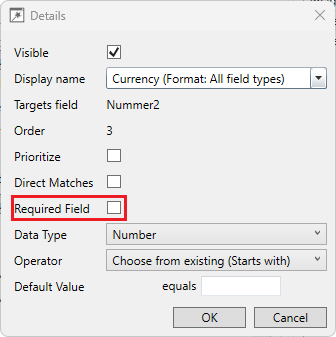
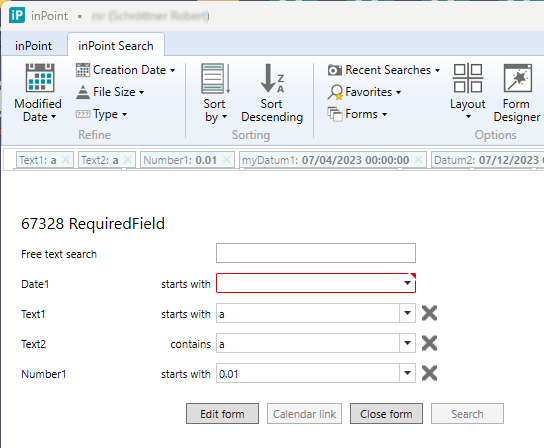
In the Form-Designer of inPoint.Standalone the form fields now have a new option named Required Field.
When set, the the field must be filled with a value before running a search.
NOTE: Using this feature, old clients are ignoring the required-condition. Updating search forms with old clients will save always with required=false
Mail archiving user
Internal: see TFS [#66687]
It's required to define the mail archiving user for inPoint 2023.3 with mail archiving using the custom 001_00_MailPredefinedSecurity.ps1 PowerShell script.
See the updated manual for more details.
Upgrading the inPoint 2023.1 or earlier release with mail archiving shows an error dialog, asking the user to manually execute the 001_00_MailPredefinedSecurity.ps1 PowerShell script.
The wizard will not complete until the mail archiving user is not set with the custom PowerShell script.
Use for: MS SQL

Configure custom sorting for ExtraAttributes Lookup Repositories
Internal: see OTRS [2022031601000092]
Internal: see TFS [#66742]
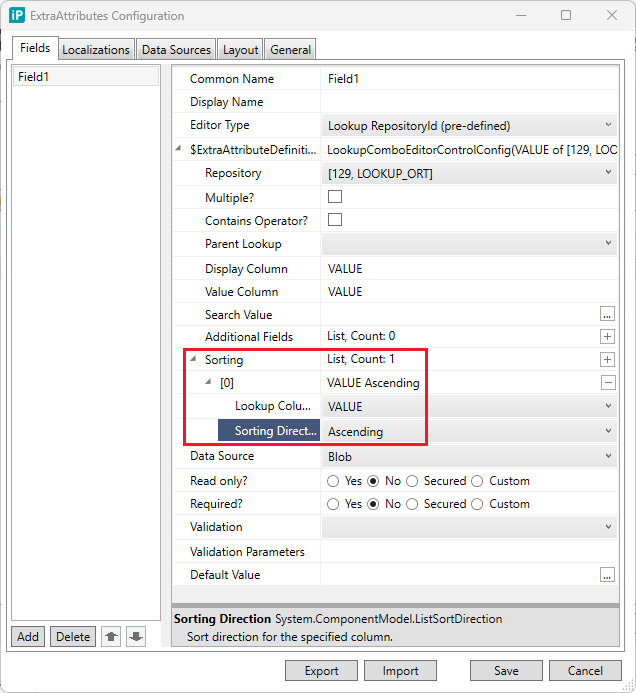
The ExtraAttributes control "LookupRepositoryID (pre-defined)" has now a new configuration option: Sorting.
Here you can specify sort columns and sort directions for the result.
inPoint.Sync arguments
Internal: see OTRS [2023052401000044]
Internal: see TFS [#66960]
The inpoint:uri commands of inPoint.Sync have been fixed and improved.
For the full list of the supported commands see https://serviceportal.hs.ag/docs/inPoint.Enterprise/docs/admin-inpoint-uris#general-parameters
For plugin development: The HierarchyProvider now initializes the Crypter() with the SecureParams-Secret configured at the server. This is done when the connection is opened. So it's now safe to use the Crypter() for encryption even when the user specifies a custom secret.
Language of the current user
Internal: see OTRS [2023060201000021]
Internal: see TFS [#67130]
The inPoint.Core methods
- WhoAmI /api/v1/users/whoAmI
- GetUser /api/v1/users/{id}
are now returning an additional field "Language" with the language currently configured for the user.
Clear-Selection Button
Internal: see OTRS [2023051501000089]
Internal: see TFS [#67133]
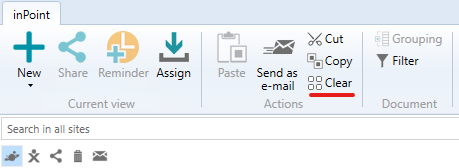
In inPoint.Standalone and in the Outlook-Plugin there is a new button [ Clear ] to clear the document selection.
Additionally some other improvements where implemented:
Additionally some other improvements where implemented:
- When archiving new documents they are automatically selected in the documents-list.
- This should work via Drag&Drop into the DocList and also via Assign-Dialog.
- Archiving a Folder-Structure now selects the created folder.
- Closing and re-opening inPoint.Standalone/Outlook, the previously selected folder and documents should be selected again.
- This re-selection should work in the DocList with virtualization enabled or disabled.
- For some special cases the re-selection still does not work. For example re-selecting a document in the recylce-bin or in the search-favorites does not work at all. Also re-selecting documents in the Mailbox-Ara sometimes does not work.
- For plugin development: Also for New-Document operations the UIState should now have previously selected document selected.
Sorting of principals in the security- and the assign-mailbox-window
Internal: see OTRS [2023072601000028]
Internal: see TFS [#67804]
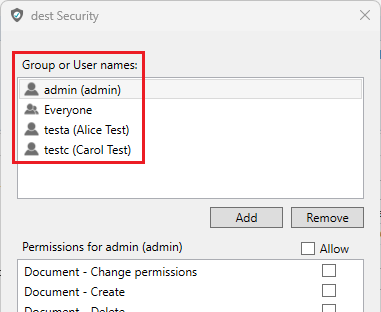
The users and groups listed in the security window and in the assign-mailbox windows are now sorted alphabetically.
Calculating the offered element type and element formats for the newly created folder only from the sibling nodes of the newly created folder
Internal: see TFS [#68448]
The offered element type and the most used element formats for the newly created folder were calculated from all descendants (the whole subtree) belonging to the parent of the newly created folder.
This caused performance issues when the number of descendants reached a certain amount.
Beginning from version 2023.3 the offered element type and the most used element formats for the newly created folder are calculated only from the sibling nodes (nodes on the same hierarchical level under the same parent node) of the newly created folder.
Affected areas in inPoint.Client
- FolderNewQuick command submenu choices
- the type of the offered element formats will be the most used type in the sibling nodes of the newly created folder
- New Folder dialog
- the pre-selected element format will be the most used format in the sibling nodes of the newly created folder
- the element formats from the sibling nodes of the newly created folder are sorted by usage (most used as first), the other element formats (belonging to the site) are sorted by name and appended to the end of the list